Table of Contents
- Welcome to Diliguard
- Getting Started
- The Command Center
- Running a Scan
- Scan Types: Digital OSINT
- Scan Types: Corporate & AML
- Scan Types: Financial Intelligence
- Running a Workflow
- Continuous Monitoring
- Scan History
- Account Settings
- Team Management
- Billing
- Organization Settings
- Navigation Guide
- Frequently Asked Questions
- API Keys and Usage Metrics
- Connecting to Claude
- Final CTA
Welcome to Diliguard
Headline: Due Diligence Done Right Subheadline: The complete step-by-step guide to using Diliguard, from your first sign-in to continuous monitoring.
Diliguard is a due diligence and risk-checking platform. It helps you research people, companies, and digital identities so you can make safer business decisions.
With Diliguard, you can:
- Check if a company is legitimate by looking up its registration, owners, and tax status.
- Screen people against global watchlists, including sanctions lists, law enforcement databases, and politically exposed persons (PEP) lists.
- Investigate digital footprints like email addresses, phone numbers, usernames, and websites.
- Monitor crypto wallets for connections to sanctioned or criminal activity.
- Set up automatic recurring checks so you are alerted when something changes.
Everything runs from your web browser at portal.diliguard.com. There is nothing to install.
Getting Started
Creating an Account
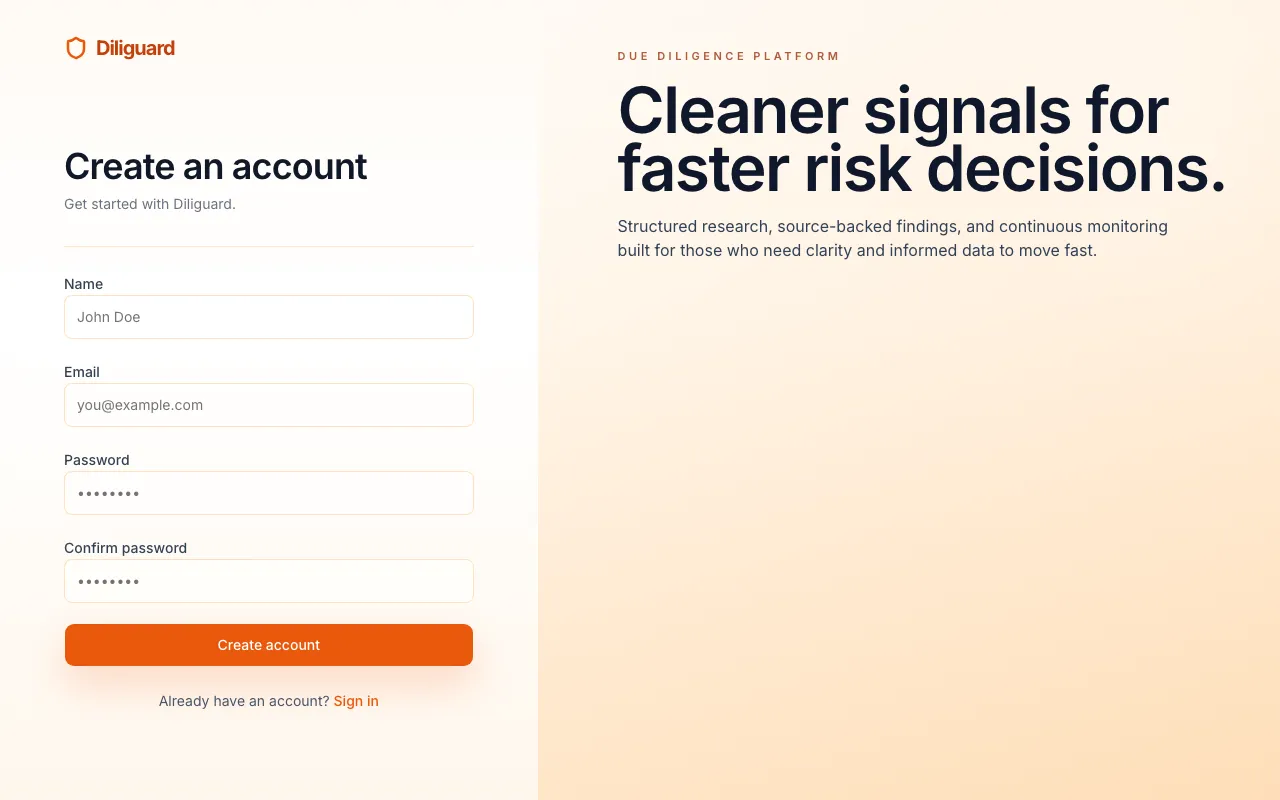
- Go to portal.diliguard.com.
- Click Sign up at the bottom of the login page.
- Fill in your details: – Name (optional): your full name. – Email (required): this becomes your login email. – Password (required): choose a strong password. – Confirm password (required): type the same password again.
- Click Create account.
A verification email will be sent to your inbox. Check your email and follow the link to verify your account. If you do not see the email, check your spam or junk folder.
Signing In
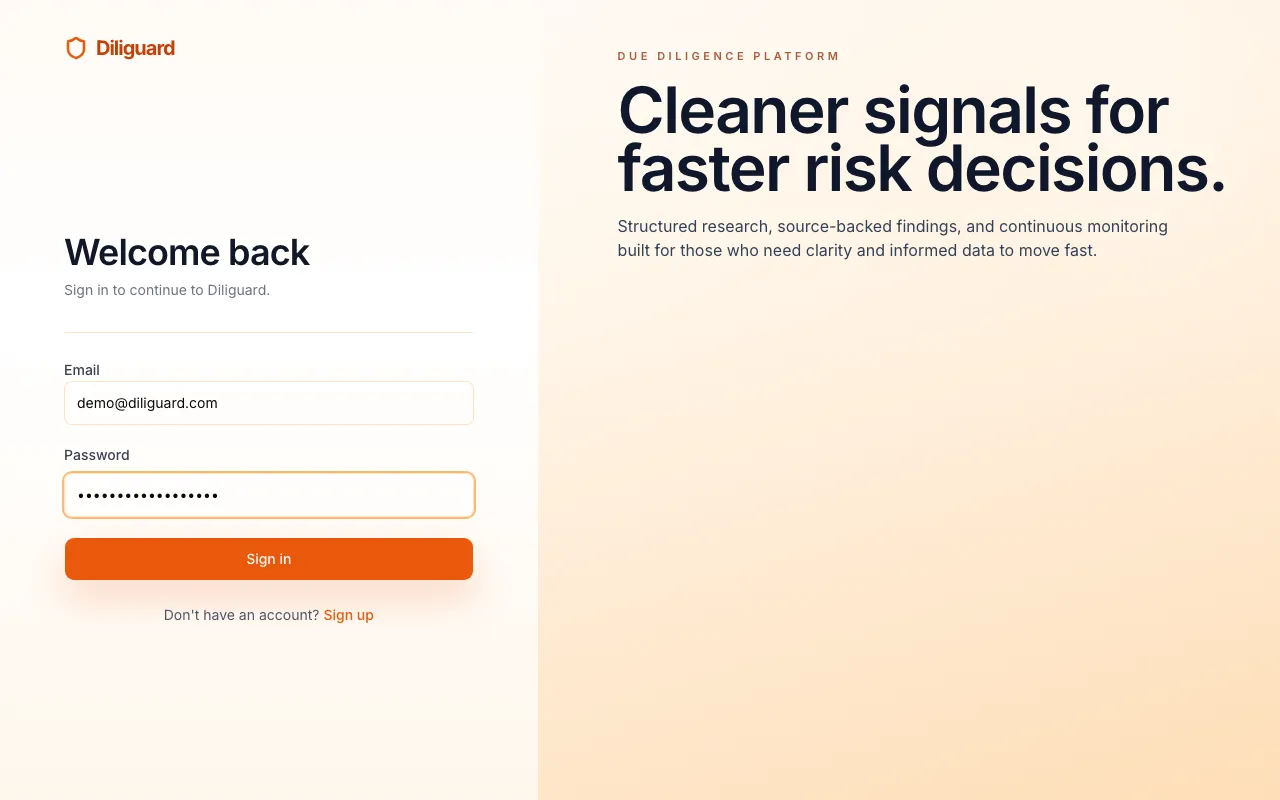
- Go to portal.diliguard.com.
- Enter your email and password.
- Click Sign in.
If you see the message “Please verify your email before logging in,” check your inbox for the verification email and click the link inside it.
What You See After Logging In
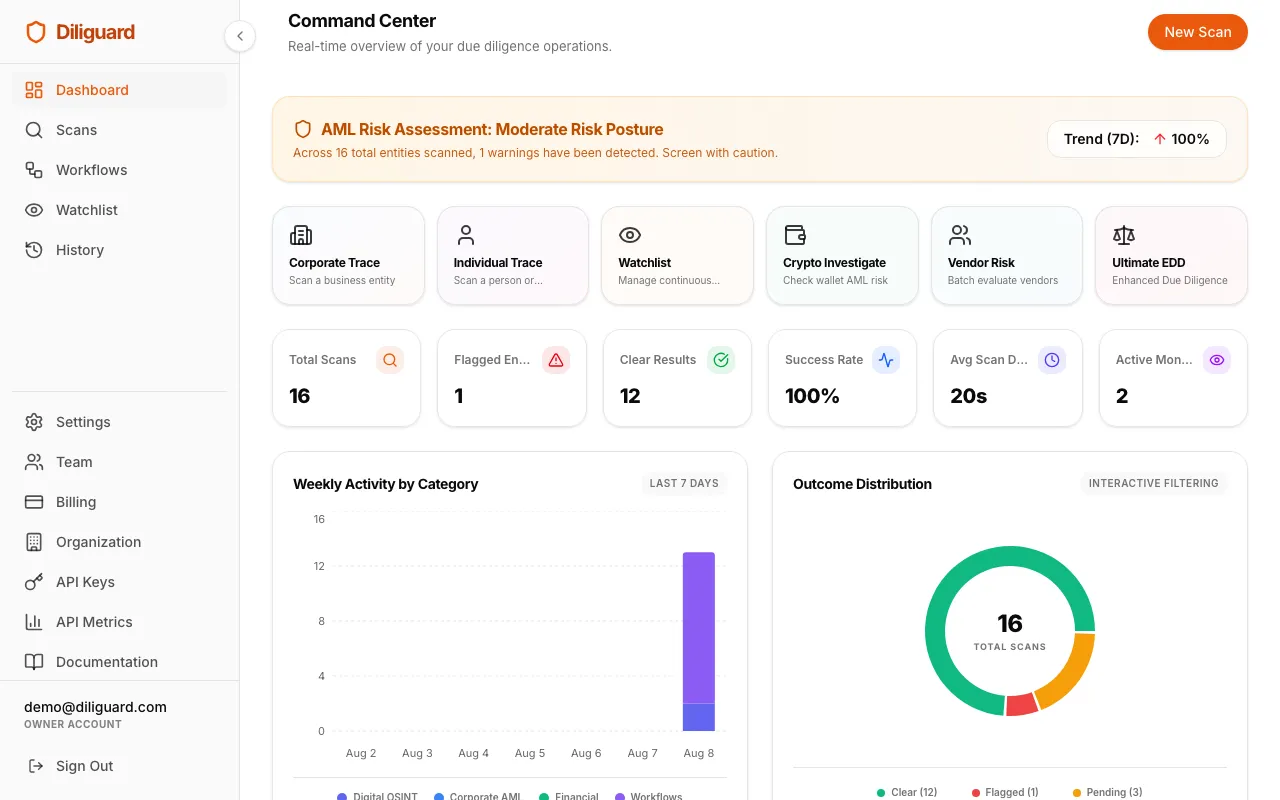
After signing in, you land on the Command Center. This is your main dashboard. It shows a summary of all your scans and activity at a glance.
The Command Center
The Command Center is the first page you see after logging in. It gives you a quick overview of everything happening in your account.
Quick Actions
At the top of the page, three cards let you jump straight into the most common tasks:
| Card | What It Does |
|---|---|
| Corporate Trace | Scan a business entity |
| Individual Trace | Scan a person or director |
| Watchlist | Manage your continuous monitors |
Click any card to get started.

KPI Cards
Below the quick actions, four number cards show your key statistics:
| Card | What It Means |
|---|---|
| Total Scans | The total number of scans you have run. |
| Flagged Entities | How many scans came back with a risk or alert. |
| Clear Results | How many scans came back clean with no issues. |
| Success Rate | The percentage of scans that completed without errors. |

Charts
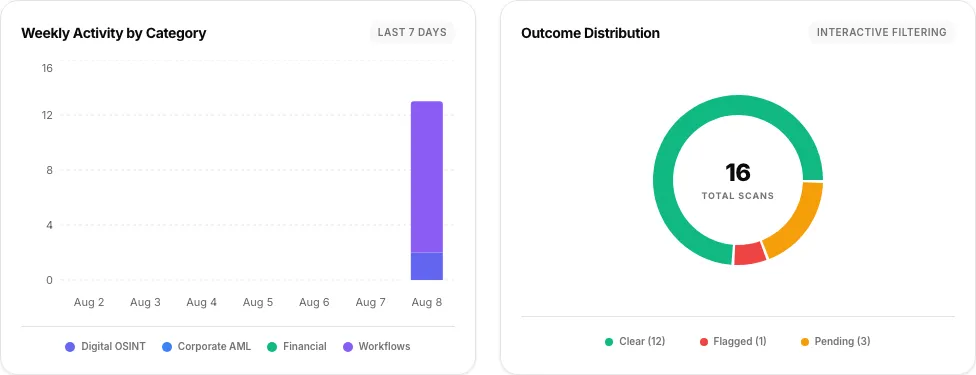
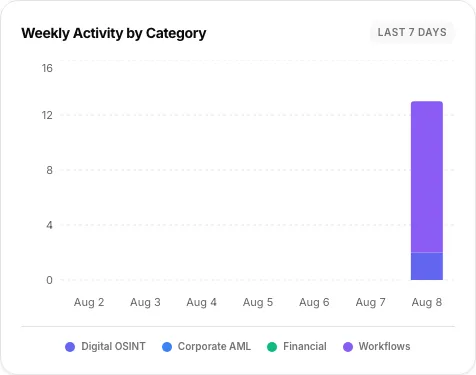
If you have run at least one scan, two charts appear below the KPIs:
- Weekly Scan Activity: a bar chart showing how many scans you ran each day over the past 7 days.
- Risk Distribution: a donut chart breaking down your scans by outcome. The outcomes are Clear, Flagged, Pending, or Error.
If you have not run enough scans yet, you will see a “Not enough data to graph” message instead.
Recent Scans Table
At the bottom of the Command Center is a table showing your most recent scans. Each row shows:
- Target Entity: the name or email you scanned.
- Workflow Type: what kind of scan it was.
- Risk Status: either “Flagged” (red) or “Clear” (green).
- Executed: when the scan was run.
You can:
- Search by typing a target name in the search box.
- Filter by status using the dropdown. The options are All, Flagged, Clear, or Error.
- Click View All to see your full scan history.
- Click any row to view the full details of that scan.
If you have not run any scans yet, you will see a “No scans yet” message with a button to start your first scan.
Running a Scan
A scan is a single investigation that checks one target against one or more data sources.
Browsing Available Scans
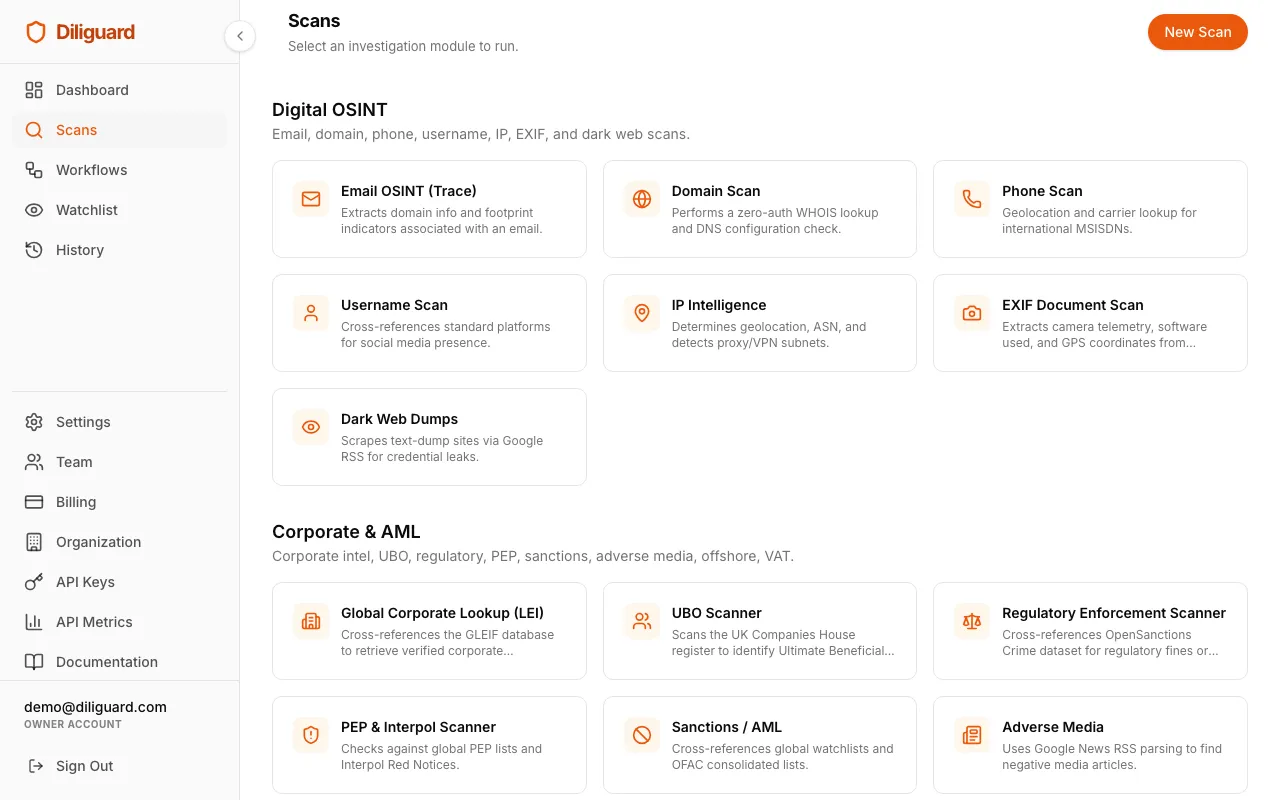
- Click Scans in the sidebar. On mobile, tap the hamburger menu first.
- You will see all available scan modules organized into three categories: – Digital OSINT: checks on emails, websites, phone numbers, usernames, IP addresses, images, and dark web leaks. – Corporate & AML: checks on companies, beneficial owners, sanctions, regulatory fines, and more. – Financial Intelligence: checks on crypto wallets and bank account (IBAN) validation.
- Click any scan card to open it.
Filling In the Form
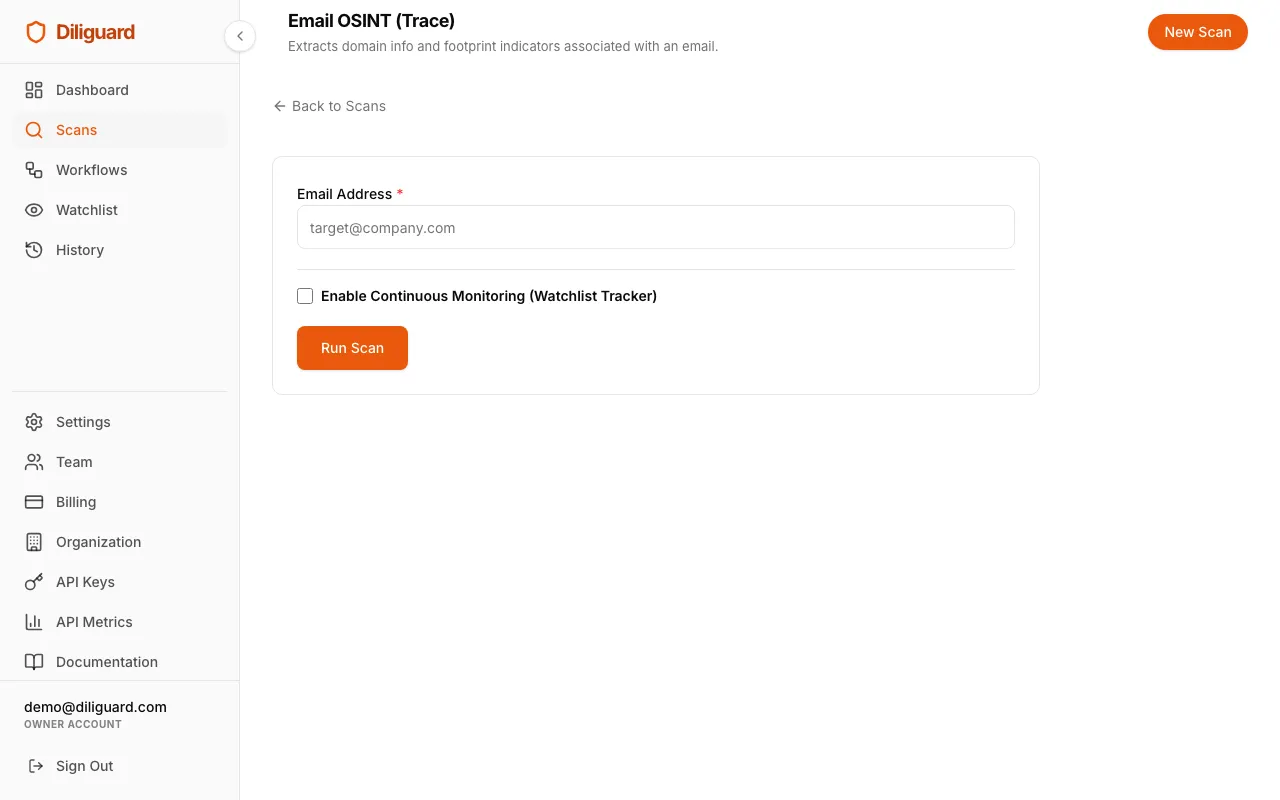
Each scan has a simple form. Fill in the information it asks for. Fields marked with a red asterisk (*) are required.
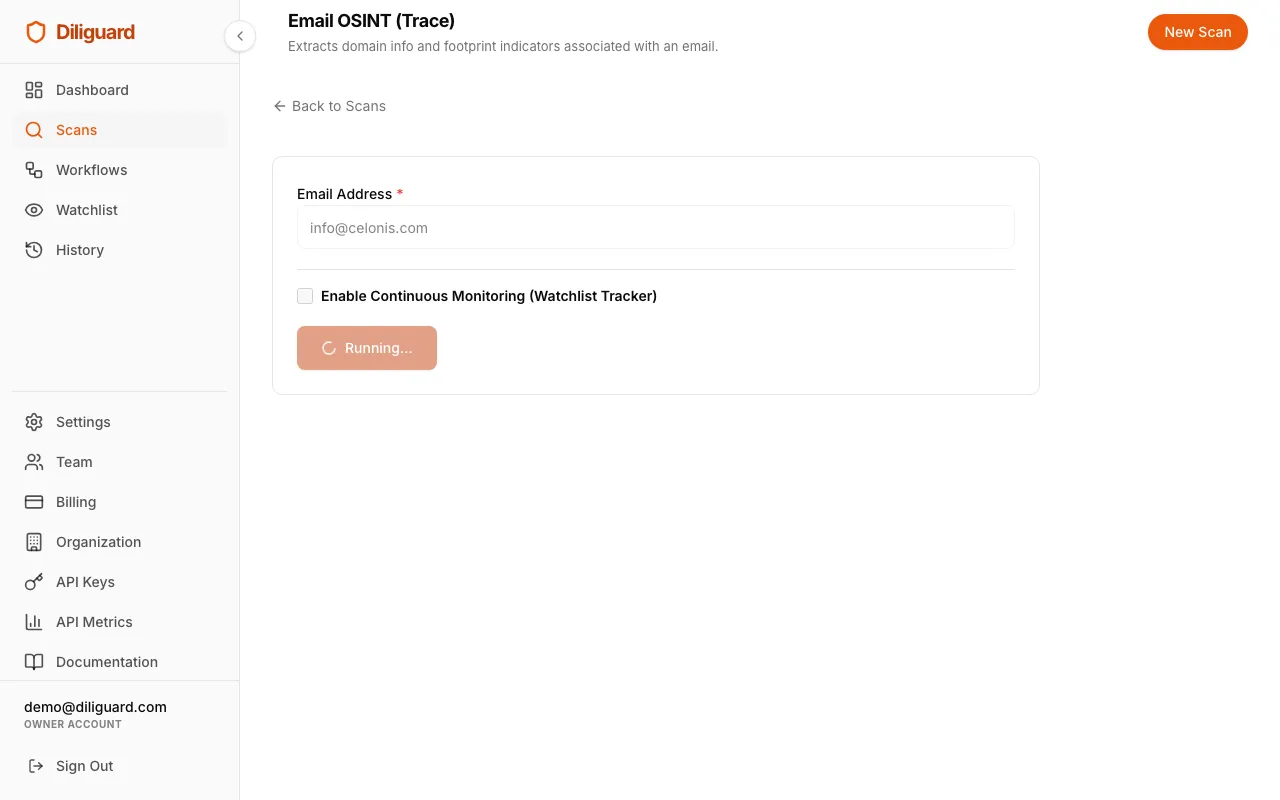
For example, the Email OSINT (Trace) scan asks for one field:
- Email Address: the email you want to investigate.
Other scans ask for different things, such as a company name, phone number, website domain, or crypto wallet address. Each scan’s form is tailored to what it needs.
Running the Scan
- Fill in all required fields.
- Click Run Scan.
- Wait for the results. The button will show “Running…” while the scan is in progress.
- When it finishes, your results appear below the form.
If something goes wrong, you will see a red error message explaining what happened. Check that you entered the information correctly and try again.
Reading Your Results
Every scan result has three views you can switch between using the tabs at the top:
| Tab | What It Shows |
|---|---|
| Formatted View | A clean, organized summary of the findings. This is the default and the easiest to read. |
| Raw JSON Result | The full data in a technical format. Useful if you need to copy or share the exact data. |
| Link Analysis Graph | A visual map showing connections between entities. This is available for corporate scans. |
Most of the time, the Formatted View is all you need. It uses color-coded cards and labels to make the findings easy to understand:
- Green means clear or safe.
- Red means flagged or a match was found.
- Amber means caution or pending.
- Gray means no data or an error.

Adding to Continuous Monitoring
Below the scan form, you can check the box labeled Enable Continuous Monitoring (Watchlist Tracker). When you check this box:
- A dropdown appears asking how often you want the scan to repeat. The options are Daily, Weekly, Monthly (default), Quarterly, or Yearly.
- After the scan completes, Diliguard will automatically schedule it to run again at the interval you chose.
- The target is added to your Watchlist so you can manage it later.
You do not have to enable monitoring. It is completely optional.
Scan Types: Digital OSINT
These scans investigate digital identities. That includes email addresses, websites, phone numbers, usernames, IP addresses, images, and dark web exposures.
Email OSINT (Trace): Email Investigation Tool
This scan investigates an email address by checking whether it is real, whether it can receive messages, what domain it belongs to, and whether social media accounts are connected to it. It is one of the most common starting points for due diligence on an individual.
When to use this: You have an email address belonging to a person or company and want to verify it is real, find out what platforms the person uses, and check if the domain has been properly configured.
What You Need to Enter:
| Field | Type | Required | Example |
|---|---|---|---|
| Email Address | Yes | contact@company.com |
What the Results Show:
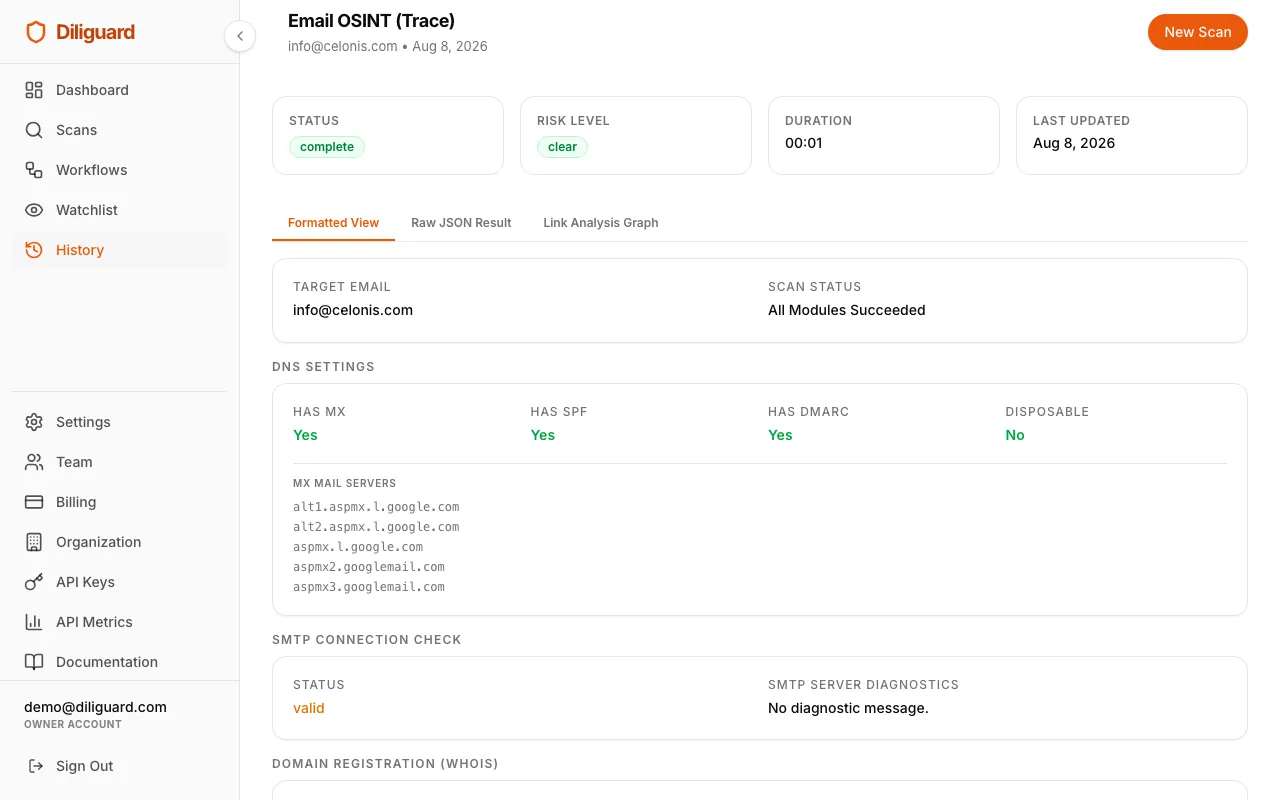
- DNS Settings: shows whether the email domain has MX records (can receive email), SPF records (authorized senders), and DMARC records (anti-spoofing protection). Each shows as “Yes” (green) or “No” (red). If the domain is a known disposable email provider, this is flagged.
- MX Mail Servers: lists the actual mail servers configured for the domain.
- SMTP Connection Check: tests whether the email address is deliverable. It shows “Deliverable” (green) or an error status (amber) with diagnostics.
- Domain Registration (WHOIS): shows the domain registrar, when it was created, and when it expires. A very new domain or one about to expire can be a warning sign.
- Social Media Footprint: lists social media platforms and websites where this email has been registered. Each platform is shown as a clickable badge. A wide footprint across many platforms can indicate a real person. No footprint at all may warrant caution.
Related scans: For deeper domain analysis, use the Domain Scan. For checking whether the email has appeared in data breaches, use the Dark Web Dumps scan.
Domain Scan: WHOIS & DNS Lookup Tool
This scan checks a website domain’s public registration details and verifies its email and security settings. It tells you who owns a domain, when it was registered, and whether it is properly configured to send and receive email securely.
When to use this: You want to verify a company’s website is legitimate, check when the domain was registered, or confirm the domain has proper email authentication (MX, SPF, DMARC) in place.
What You Need to Enter:
| Field | Type | Required | Example |
|---|---|---|---|
| Domain | Text | Yes | example.com |
What the Results Show:
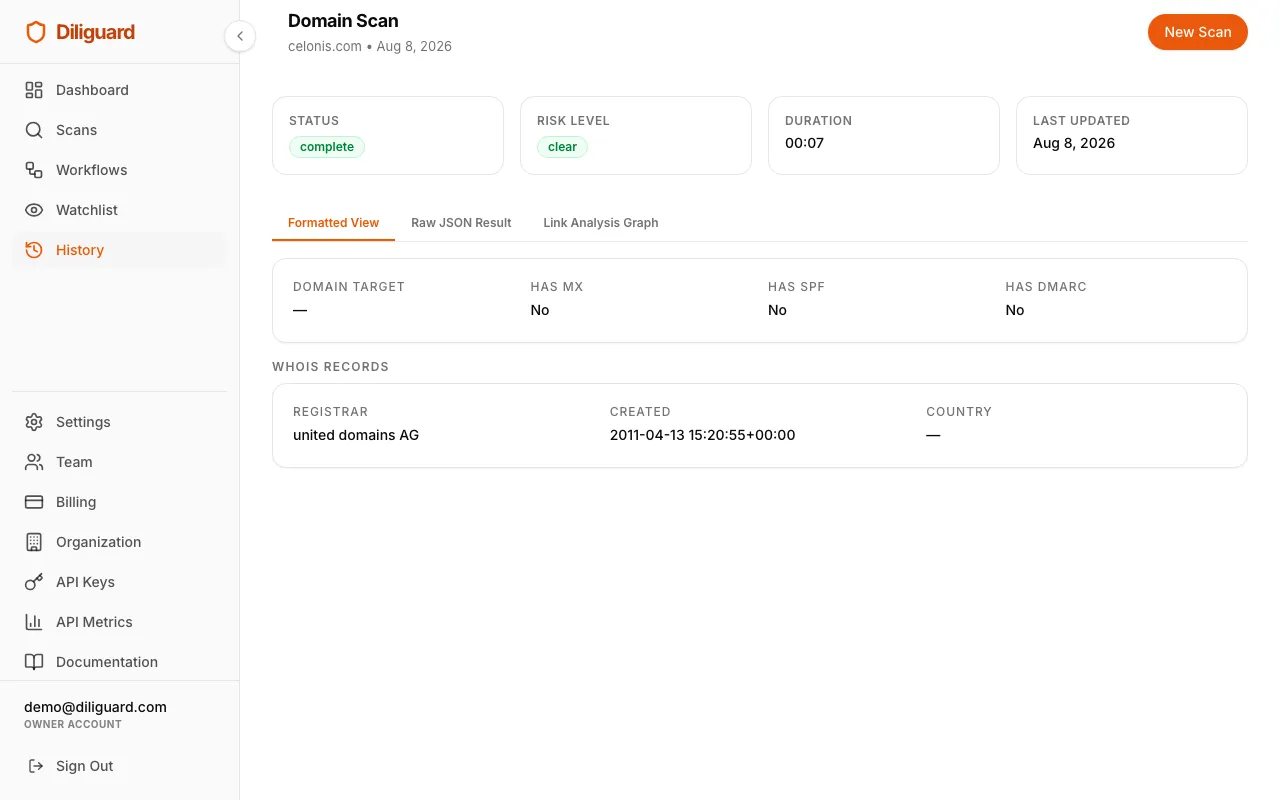
- Domain Summary: shows the domain you scanned, whether it has MX records, SPF records, and DMARC records. Each is marked “Yes” (green) or “No” (red).
- WHOIS Records: if available, shows the domain registrar (the company where the domain was registered), the creation date, and the country of registration. A very new domain can be a warning sign for phishing or fraud.
Related scans: For a broader investigation of the company behind a domain, use the Global Corporate Lookup (LEI) or Corporate KYC Workflow. For the email address at this domain, use the Email OSINT (Trace).
Phone Scan: Phone Number Lookup & Carrier Check
This scan looks up a phone number to find out which country it belongs to, which carrier services it, and whether it is a mobile or landline number. It also shows the timezone for the number’s region.
When to use this: You have a phone number provided by a person or listed on a company website and want to verify which country it is from and whether it is a real mobile number or a landline/VoIP number.
What You Need to Enter:
| Field | Type | Required | Example |
|---|---|---|---|
| Phone Number | Text | Yes | +1234567890 |
Important: Always include the country code (such as +1 for the US or +44 for the UK) for accurate results.
What the Results Show:
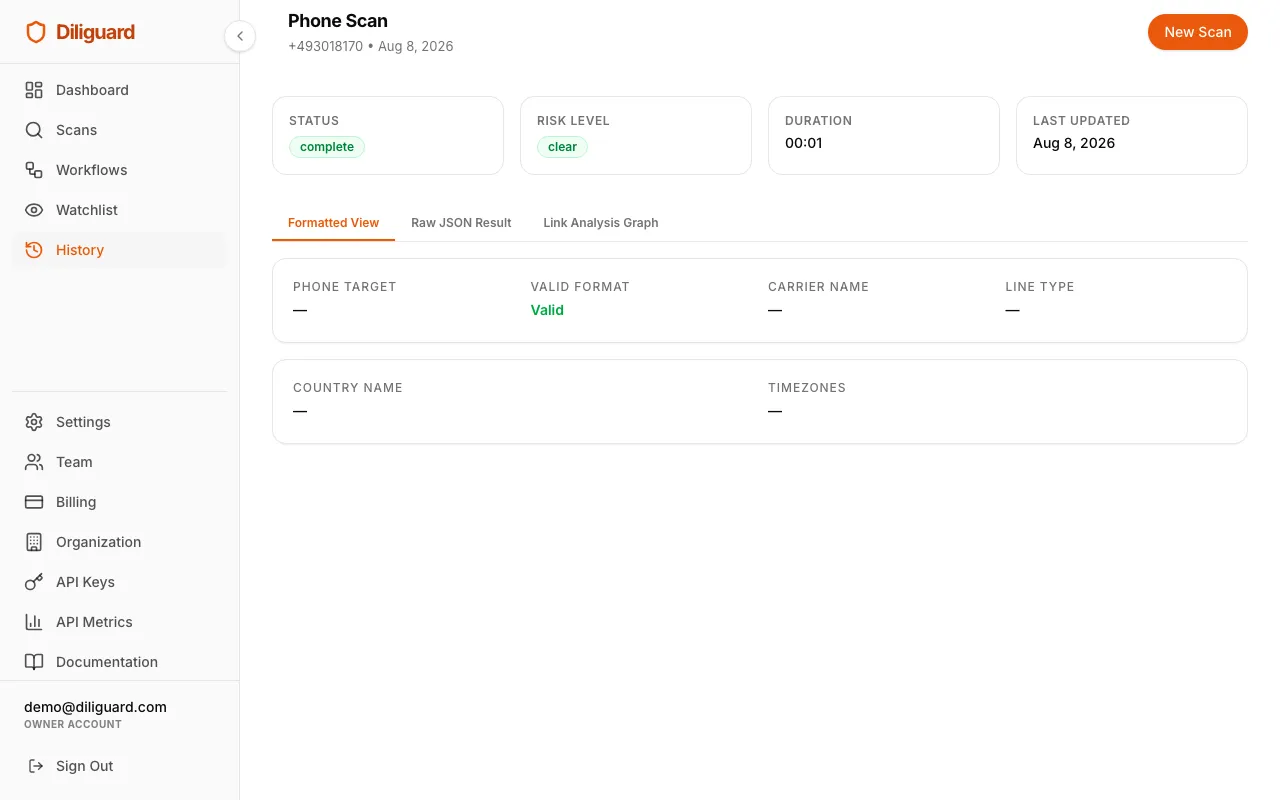
- Phone Details: shows the phone number, whether the format is valid (green for valid, red for invalid), the carrier name (for example Vodafone or AT&T), and the line type (mobile, landline, or VoIP).
- Location Details: shows the country and timezone(s) for the number.
Related scans: For a deeper investigation of the person behind the phone number, use the Person Deep Trace Workflow, which combines phone, email, and username checks.
Username Scan: Social Media Username Search
This scan searches dozens of social media platforms and online services to find accounts registered with a specific username. For every match found, it gives you a direct link to the profile.
When to use this: You have a username or handle and want to find out which platforms the person is active on, what profiles they maintain, and whether the username is consistent across the internet.
What You Need to Enter:
| Field | Type | Required | Example |
|---|---|---|---|
| Username | Text | Yes | targetuser123 |
What the Results Show:
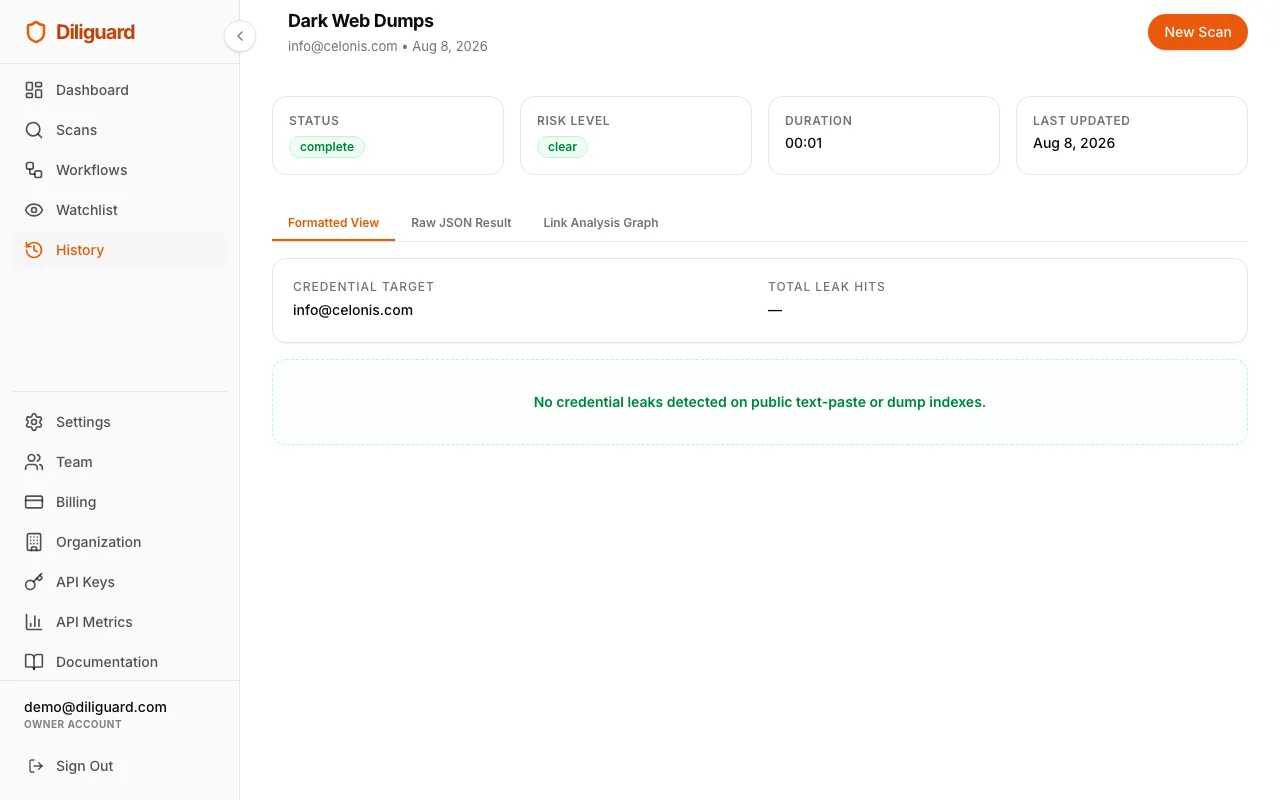
- Summary: shows the username you searched and the total number of platforms where a matching profile was found.
- Identified Profiles: a grid of cards, each showing the platform name (such as Twitter, Instagram, or GitHub) with a clickable link to the actual profile. You can visit each profile directly.
- If no profiles are found, you will see a message saying “No registered accounts found matching this username.”
Related scans: For a more complete picture of an individual’s digital footprint, combine this with the Email OSINT (Trace) and Phone Scan using the Person Deep Trace Workflow.
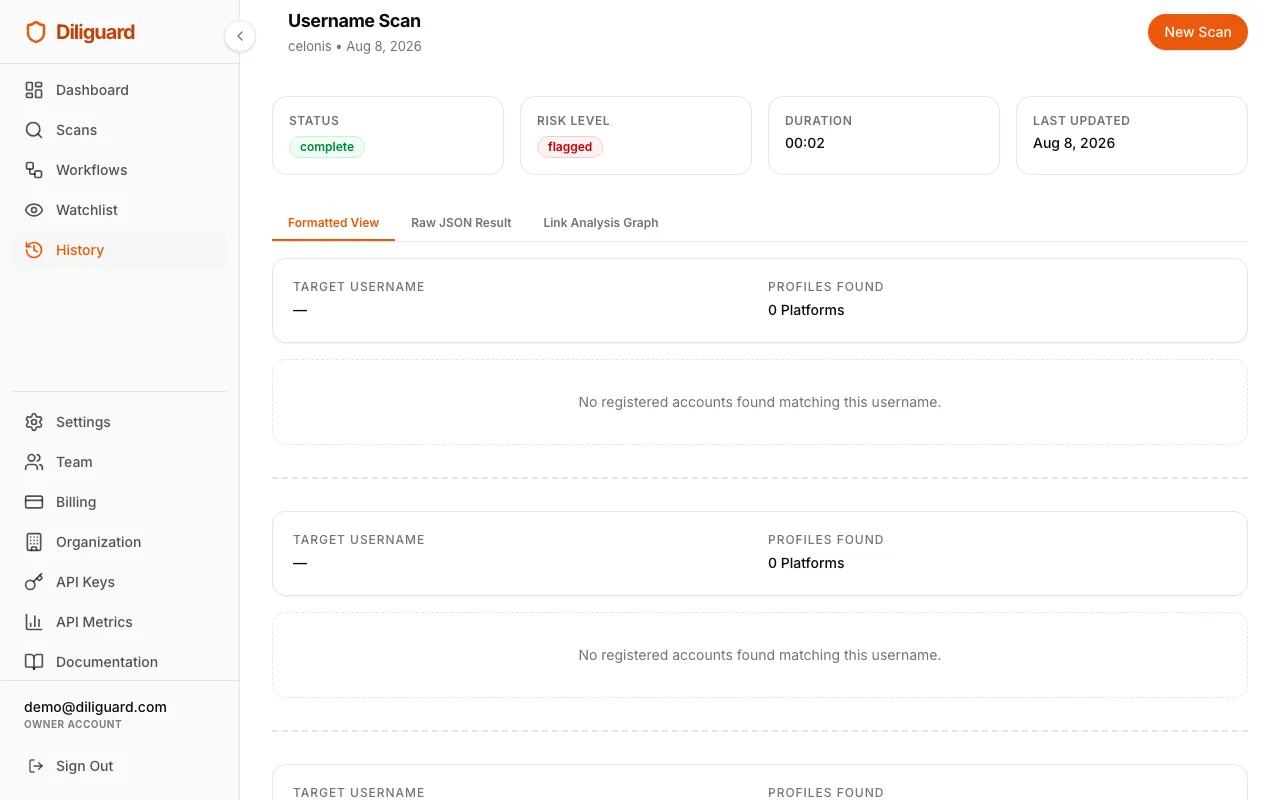
IP Intelligence: IP Address Geolocation & Proxy Detection
This scan takes an IP address and determines where it is physically located, which network it belongs to (ASN), and whether it is being routed through a proxy or VPN. This is useful for verifying where digital activity is originating from.
When to use this: You have an IP address from a server log, email header, or other source and want to know the geographic location, the hosting provider, and whether someone is hiding their real location behind a proxy or VPN.
What You Need to Enter:
| Field | Type | Required | Example |
|---|---|---|---|
| IP Address | Text | Yes | 8.8.8.8 |
What the Results Show:
- Location Details: shows the IP address, the country, and the city/region. For example: “New York, New York, United States.”
- Network Details: shows the ASN name (the organization that owns the IP block), whether a proxy was detected (red “Yes” if so), and whether a VPN was detected (red “Yes” if so). Proxy and VPN detection helps you understand if the IP address is trustworthy or if the user is masking their real location.
Related scans: This scan is also included as a module in the Crypto Investigation Workflow, where it is paired with wallet checks.
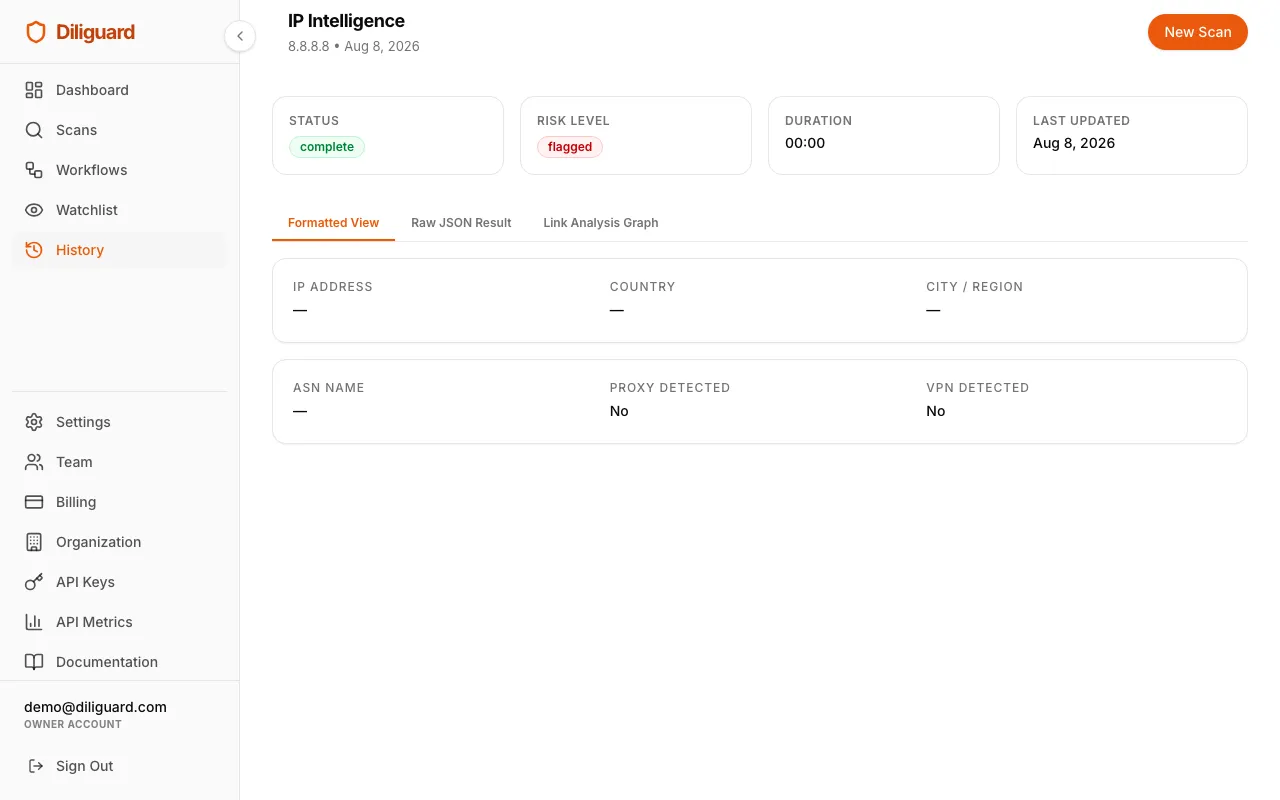
EXIF Document Scan: Image Metadata & GPS Extraction
This scan extracts hidden metadata from an image file. Digital photos and documents often contain invisible information called EXIF data, which can include the camera model, the software used to edit the image, and GPS coordinates showing where the photo was taken.
When to use this: You have an image (such as a photo of a document, an ID, or a location) and want to find out where and when it was created, what device was used, and whether it contains GPS location data.
What You Need to Enter:
| Field | Type | Required | Example |
|---|---|---|---|
| Image URL | URL | Yes | https://example.com/photo.jpg |
Important: The image must be accessible via a public URL. You can use any image hosting service.
What the Results Show:
- Summary: shows the image URL (clickable to open the image) and whether GPS data was found (green “Yes” or red “No”).
- Extracted Metadata Attributes: a grid of up to 30 key-value pairs showing all the EXIF data found. This can include camera make and model, lens information, the date and time the photo was taken, the software used to edit it, and GPS latitude/longitude coordinates. Keys are displayed in a readable format (for example, “Camera Make” instead of “Make”).
- If no metadata is found, you will see a message saying “No EXIF metadata attributes identified in the document.”
Tip: If GPS coordinates are found, you can copy them and paste them into Google Maps to see the exact location where the photo was taken.
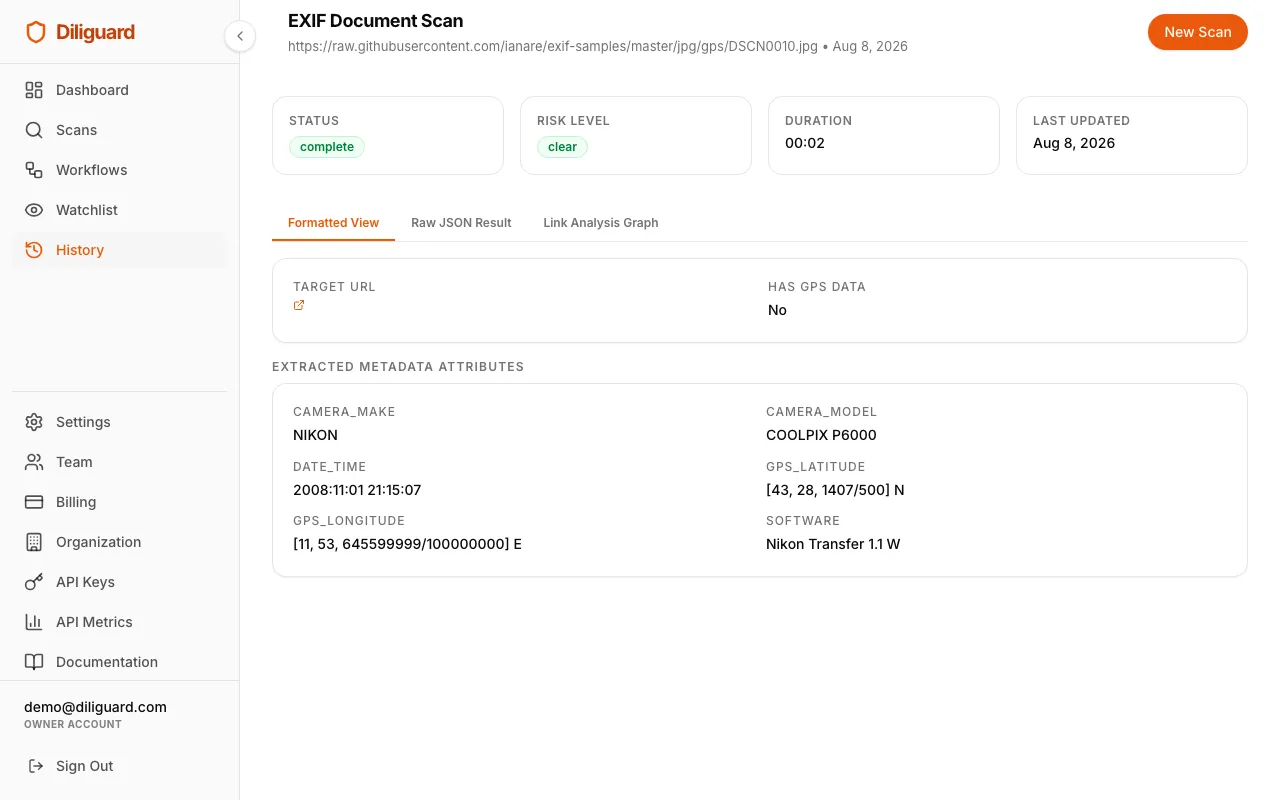
Dark Web Dumps: Credential Leak & Data Breach Check
This scan searches public text-paste sites and dump indexes for leaked credentials, which are email addresses and passwords that may have been exposed in data breaches. It helps you understand whether a person’s or company’s login information is circulating publicly.
When to use this: You want to check whether an email address or a person’s name has appeared in any known data breaches or credential dumps. This is a critical step in security-focused due diligence.
What You Need to Enter:
| Field | Type | Required | Example |
|---|---|---|---|
| Target (email or name) | Text | Yes | target@company.com |
What the Results Show:
- Summary: shows the target you searched and the total number of leak hits found.
- Credential Dumps Detected: each leak is shown in its own card with:
- Leak Title: the name or description of the breach or dump.
- Leak Source: where the leak was found (for example, a text-paste site name).
- Snippet/Context: a preview of the leaked data in a monospace code block. This helps you understand what type of information was exposed.
- If no leaks are found, you will see a green-tinted message saying “No credential leaks detected on public text-paste or dump indexes.” This is a good sign, but it does not guarantee the person has never been breached. It only means nothing was found on the sites this scan checked.
Related scans: For a broader email investigation including DNS, SMTP, and social media, use the Email OSINT (Trace).
Scan Types: Corporate & AML
These scans investigate companies, their ownership structures, and whether they or their directors appear on any sanctions, regulatory, or watchlist databases.
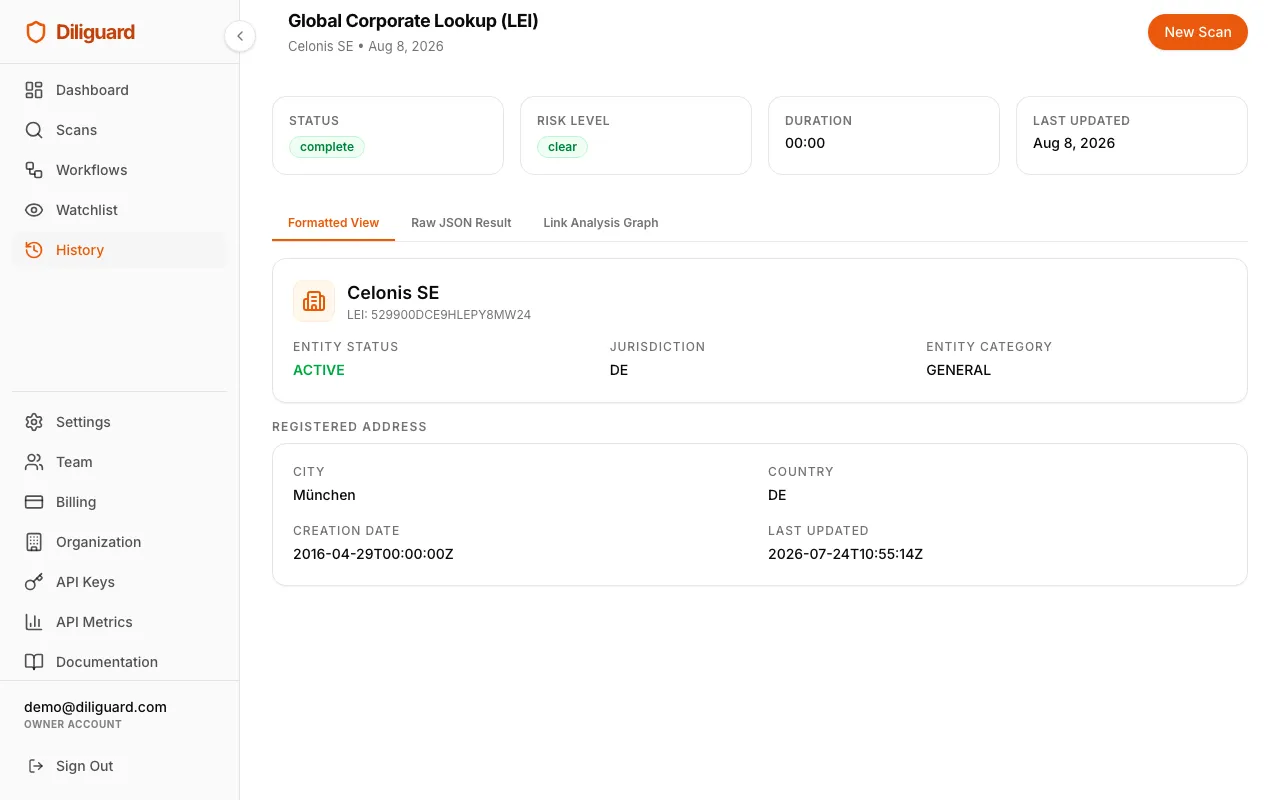
Global Corporate Lookup (LEI): Company Registration Lookup
This scan looks up a company in the GLEIF (Global Legal Entity Identifier Foundation) database. The LEI system is a worldwide standard for identifying legal entities involved in financial transactions. This scan tells you whether a company is officially registered, where it is based, and what kind of legal structure it has.
When to use this: You want to verify that a company exists, find its official registered name, confirm its jurisdiction and legal form, and check its registration status. This is a foundational step in any corporate due diligence process.
What You Need to Enter:
| Field | Type | Required | Example |
|---|---|---|---|
| Company Name | Text | Yes |
What the Results Show:
- Entity Card: shows the company’s official Legal Entity Name and LEI number. Below that, three details are displayed:
- Entity Status: “Active” (green) or another status.
- Jurisdiction: the country where the company is registered.
- Legal Form: the type of company (for example, LLC, Ltd, or Corporation).
- Registered Address Card: shows the city, country, street address, and postal code as registered in the GLEIF database.
- If no match is found, you will see “No corporate data matching this entity found in the registry.” Try searching with the company’s full legal name or a variation.
Related scans: For UK-registered companies, the UBO Scanner can find the actual people who own the company. For European companies, the EU VAT Check can verify the VAT registration. Run all checks together with the Corporate KYC Workflow.
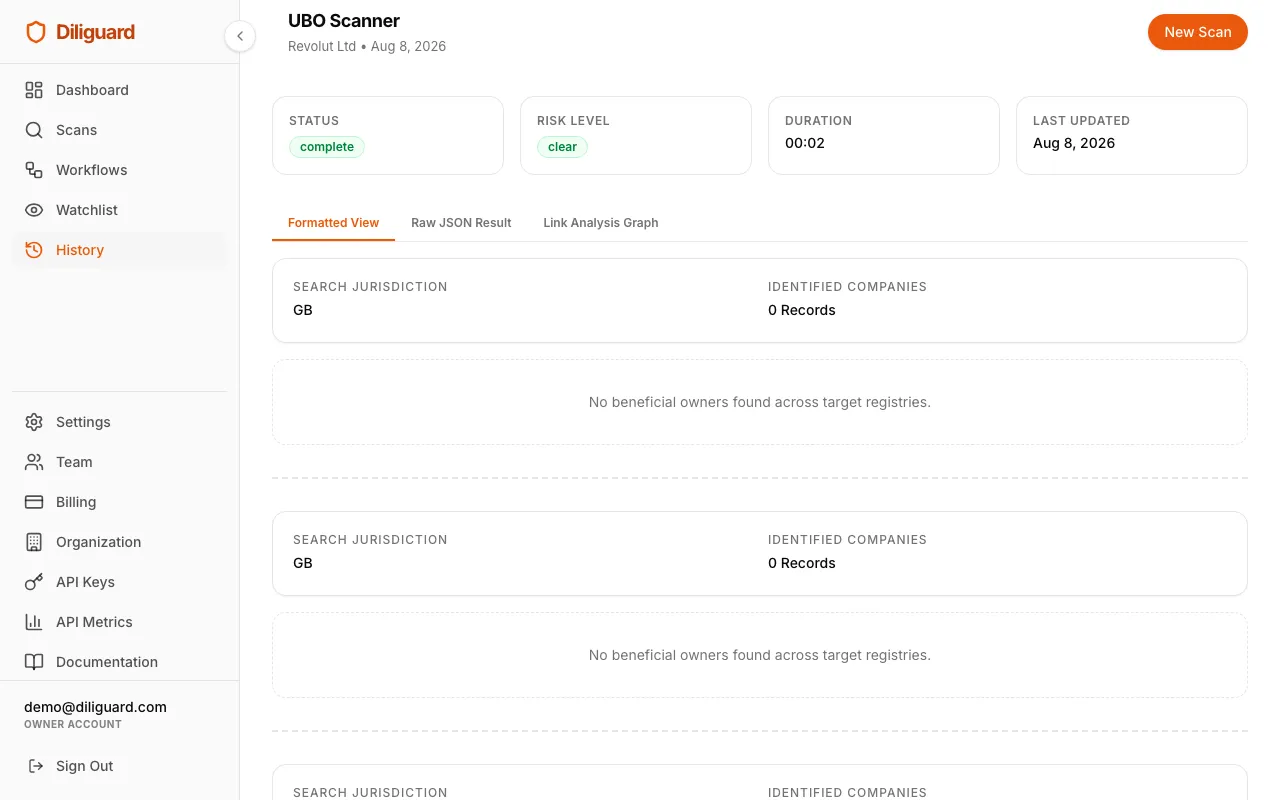
UBO Scanner: Ultimate Beneficial Owner Search
This scan searches corporate registries across 16 primary global jurisdictions (such as the UK, Germany, France, and the Netherlands) concurrently to find the Ultimate Beneficial Owners (UBOs) of a company. If no match is found, it automatically falls back to the global GLEIF database. A UBO is a real person who ultimately owns or controls a company, even if they are not listed as a director. Knowing who really controls a company is a key part of anti-money laundering (AML) compliance.
When to use this: You are investigating a company and want to identify the actual people who own or control it, including their ownership percentages. This is essential for Know Your Customer (KYC) checks and AML compliance.
What You Need to Enter:
| Field | Type | Required | Example |
|---|---|---|---|
| Company Name | Text | Yes | Tesco |
| Country Code | Text | No (Optional) | DE (for Germany) |
| VAT Number | Text | No (Optional) | DE123456789 |
| IBAN | Text | No (Optional) | GB82WEST12345698765432 |
Note: Entering the optional Country Code, VAT Number, or IBAN helps Diliguard find the correct registry database and match the company faster.
What the Results Show:
- Summary: shows the company name and the number of beneficial owners identified.
- UBOs Section: each beneficial owner is shown in their own card with:
- Name and Role: the person’s name and their role (typically “Significant Control”).
- Ownership Percentage: a badge showing what percentage of the company they control (for example, “75% Share / Control”).
- Personal Details: nationality, country of residence, birth month/year, and the date they were appointed (where available).
- If no beneficial owners are found, you will see “No beneficial owners found on target registries.”
Important: This scan covers 16 global jurisdictions directly and falls back to global databases. For deeper offshore structures, check the Offshore Leaks database.
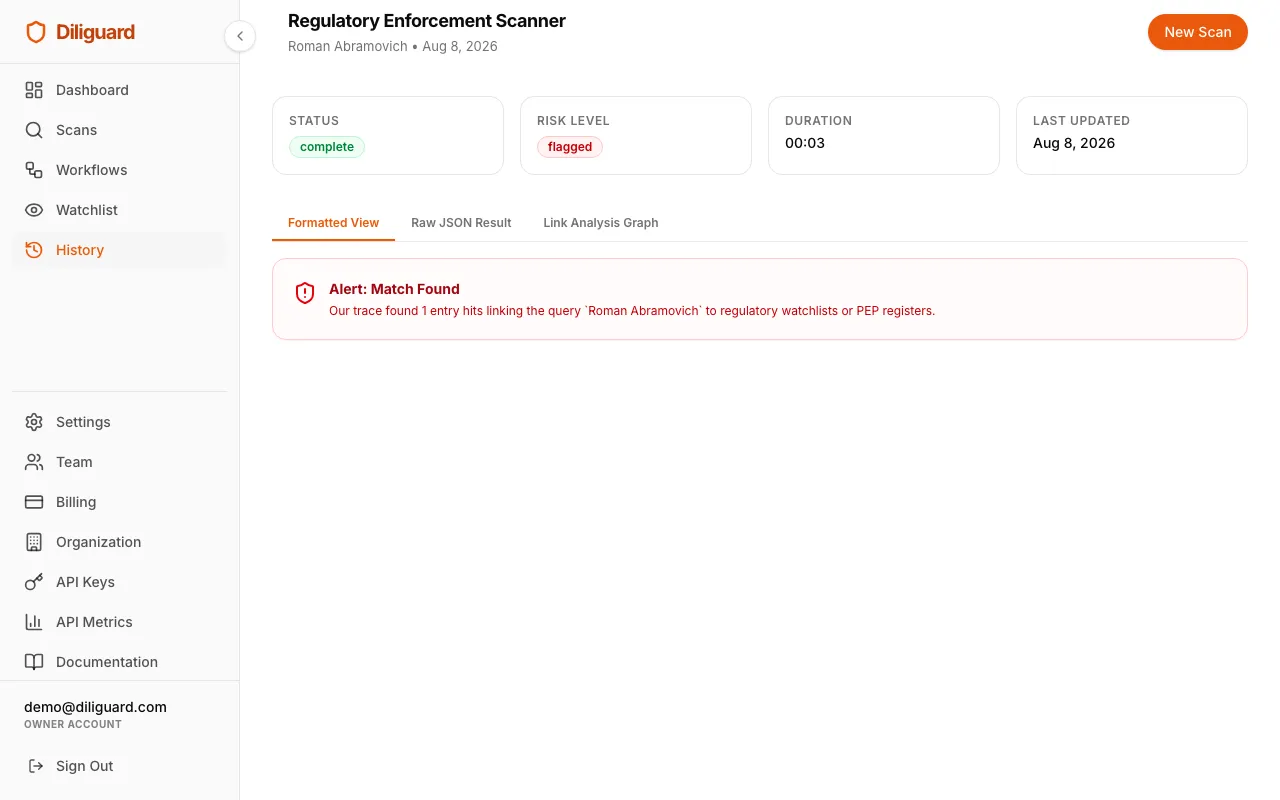
Regulatory Enforcement Scanner: Regulatory Fine & Criminal History Check
This scan checks whether a person or company has been fined, penalized, or subject to enforcement actions by regulatory authorities. It uses the OpenSanctions Crime dataset to cross-reference targets against records of regulatory enforcement.
When to use this: You are conducting due diligence on a person or company and want to find out if they have a history of regulatory violations, fines, or enforcement actions.
What You Need to Enter:
| Field | Type | Required | Example |
|---|---|---|---|
| Target Name | Text | Yes | Entity Name |
What the Results Show:
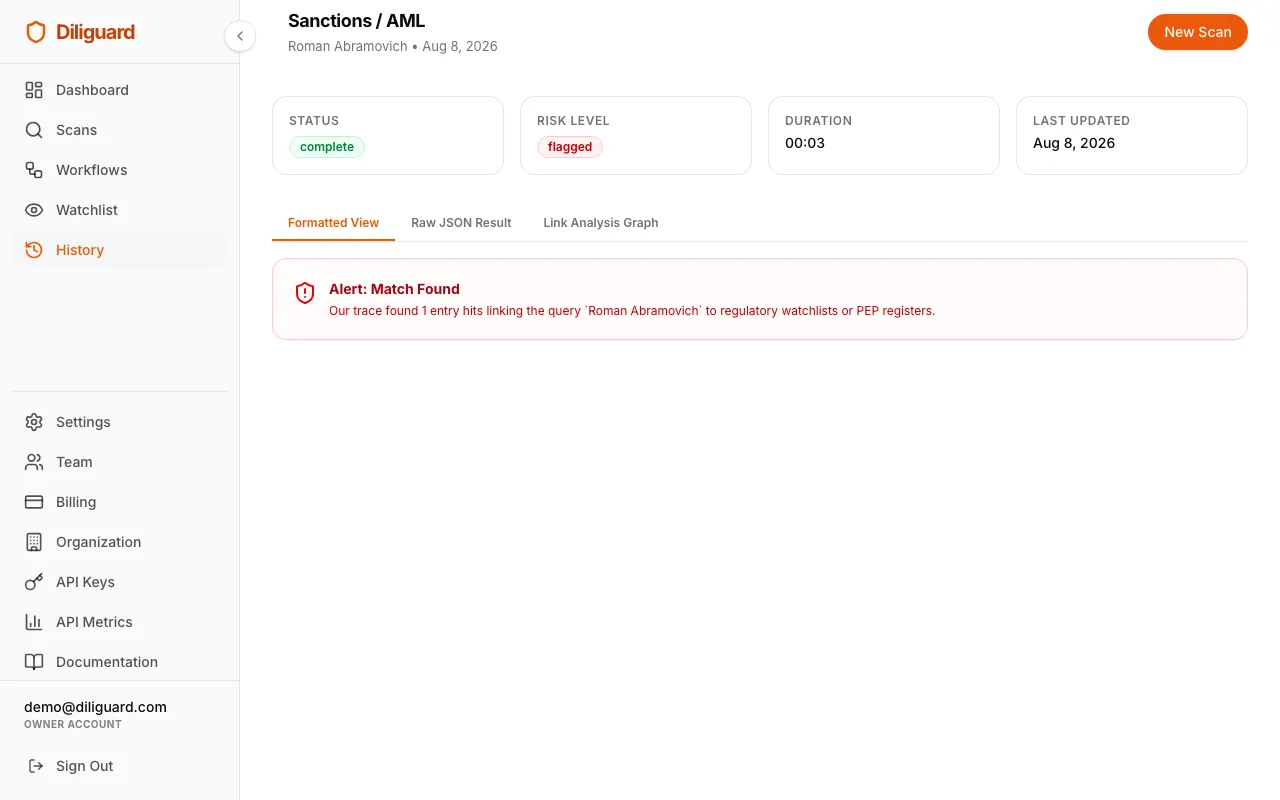
The results follow the same format as the Sanctions and PEP scans (see Sanctions / AML for the full description). You will see either:
- A green “Clear” banner if no matches were found, confirming the target has no regulatory enforcement history in the database.
- A red “Alert” banner with a list of matches. Each match shows the entity name, the database it was found in, the match score, and any available details.
Related scans: This scan shares its results format with the PEP & Interpol Scanner and Sanctions / AML. For a comprehensive screening, run all three together using the Ultimate Fraud / EDD Workflow.
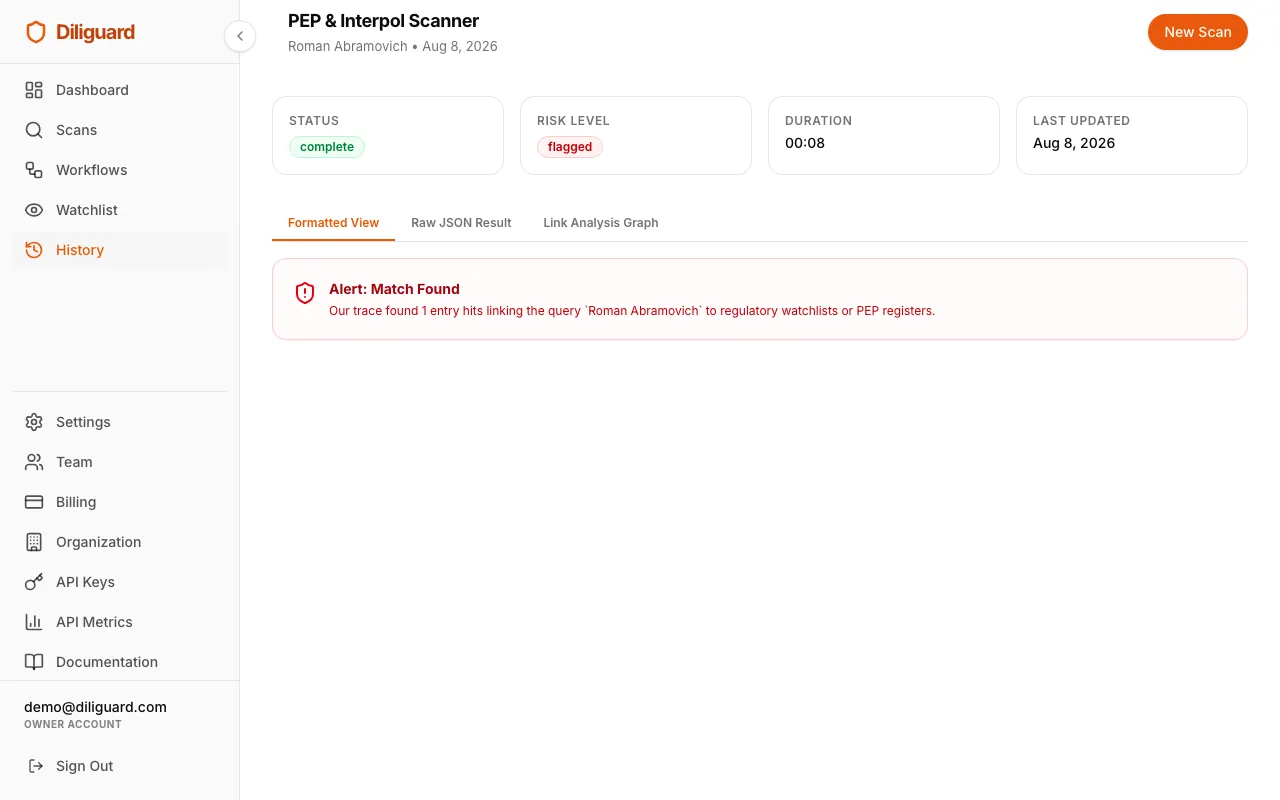
PEP & Interpol Scanner: Politically Exposed Persons Screening
This scan screens a person against global Politically Exposed Persons (PEP) lists and Interpol Red Notices. A PEP is someone who holds or has held a prominent public function, such as a government official, senior politician, or judge. PEPs are considered higher risk for money laundering because of their access to public funds.
When to use this: You are onboarding a client, partner, or employee and need to check whether they hold or have held a politically exposed position, or whether they are wanted by Interpol.
What You Need to Enter:
| Field | Type | Required | Example |
|---|---|---|---|
| Target Name | Text | Yes | Person Name |
What the Results Show:
The results follow the same format as the Sanctions and Regulatory scans. You will see either:
- A green “Clear: Screening Passed” banner if no PEP or Interpol matches were found.
- A red “Alert: Match Found” banner listing each match with:
- Entity Match Name and Database List (where the match was found).
- Match Score: how closely the record matches the name you entered.
- Birth Date and Nationality: if available in the record.
- Details Summary: additional context about the match.
Related scans: This scan is closely related to the Sanctions / AML and Regulatory Enforcement Scanner scans. All three share the same results format. Run them together with the Ultimate Fraud / EDD Workflow for a complete background check.
Sanctions / AML: OFAC & Global Watchlist Screening
This scan checks a person or company against the OFAC (Office of Foreign Assets Control) consolidated sanctions list and other global watchlists. Being on a sanctions list means the person or entity is subject to government restrictions. Doing business with them may be illegal.
When to use this: This is one of the most important checks in any due diligence process. Use it whenever you are onboarding a new client, partner, vendor, or employee to make sure they are not on a government sanctions list.
What You Need to Enter:
| Field | Type | Required | Example |
|---|---|---|---|
| Target Name | Text | Yes | Vladimir Putin |
What the Results Show:
The results follow the same format as the PEP and Regulatory scans. You will see either:
- A green “Clear: Screening Passed” banner: the target was not found on any sanctions or watchlist.
- A red “Alert: Match Found” banner listing each match with:
- Entity Match Name and Database List (for example, OFAC SDN, EU Consolidated, or UN Security Council).
- Match Score: how closely the record matches (for example, “92% Match”).
- Birth Date and Nationality/Jurisdiction: if available.
- Details Summary: additional context about the person or entity.
Important: If you get a hit, do not assume guilt automatically. The match could be a false positive (someone with a similar name). Always verify by checking the birth date, nationality, and other details. When in doubt, escalate to your compliance team.
Related scans: The Regulatory Enforcement Scanner checks for regulatory fines (separate from sanctions). The PEP & Interpol Scanner checks for political exposure. All three share the same results format. Run them together with the Ultimate Fraud / EDD Workflow.
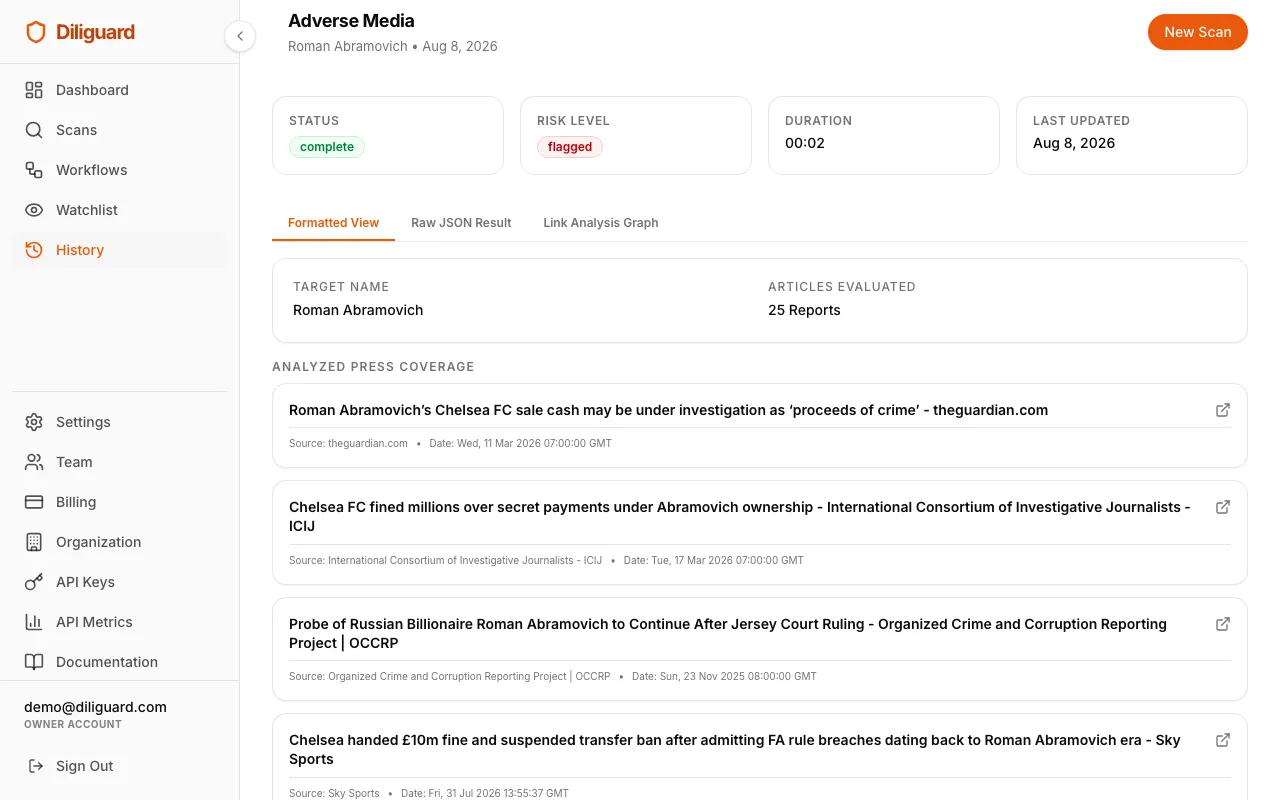
Adverse Media: Negative Press & News Article Search
This scan searches global and local news outlets (using Google News) for negative or concerning press articles about a person or company. Bad press can be an early warning sign of fraud, legal trouble, or reputational risk. To ensure Diliguard captures local news, it automatically translates risk search terms (such as “fraud,” “scam,” or “arrest”) into the local official language of the target’s country.
When to use this: You are performing due diligence on a person or company and want to find out if there are any negative news articles, investigative reports, or concerning media coverage associated with them, including reports in local newspapers.
What You Need to Enter:
| Field | Type | Required | Example |
|---|---|---|---|
| Target Name | Text | Yes | Entity Name |
| Country Code | Text | No (Optional) | DE (for Germany) |
Note: Entering the optional Country Code helps Diliguard know which local language to translate the search words into and which country’s news to prioritize.
What the Results Show:
- Summary: shows the target name, country searched, language used, and the total number of articles found and evaluated.
- Analyzed Press Coverage: each article is shown as a clickable card with:
- Article Title: the headline of the news article (clickable to open the full article in a new tab).
- Source: the news outlet that published it (for example, Reuters, BBC, Bloomberg, or local news portals).
- Date: when the article was published.
- If no negative articles are found, you will see “No negative or adverse press articles identified for this target.”
Tip: Even if no adverse media is found, it does not mean the target is risk-free. Some entities may have coverage on sites not indexed by Google News. Use this scan as one input alongside other checks.
Related scans: For a complete media and reputation check, pair this with the Sanctions / AML and Regulatory Enforcement Scanner scans.
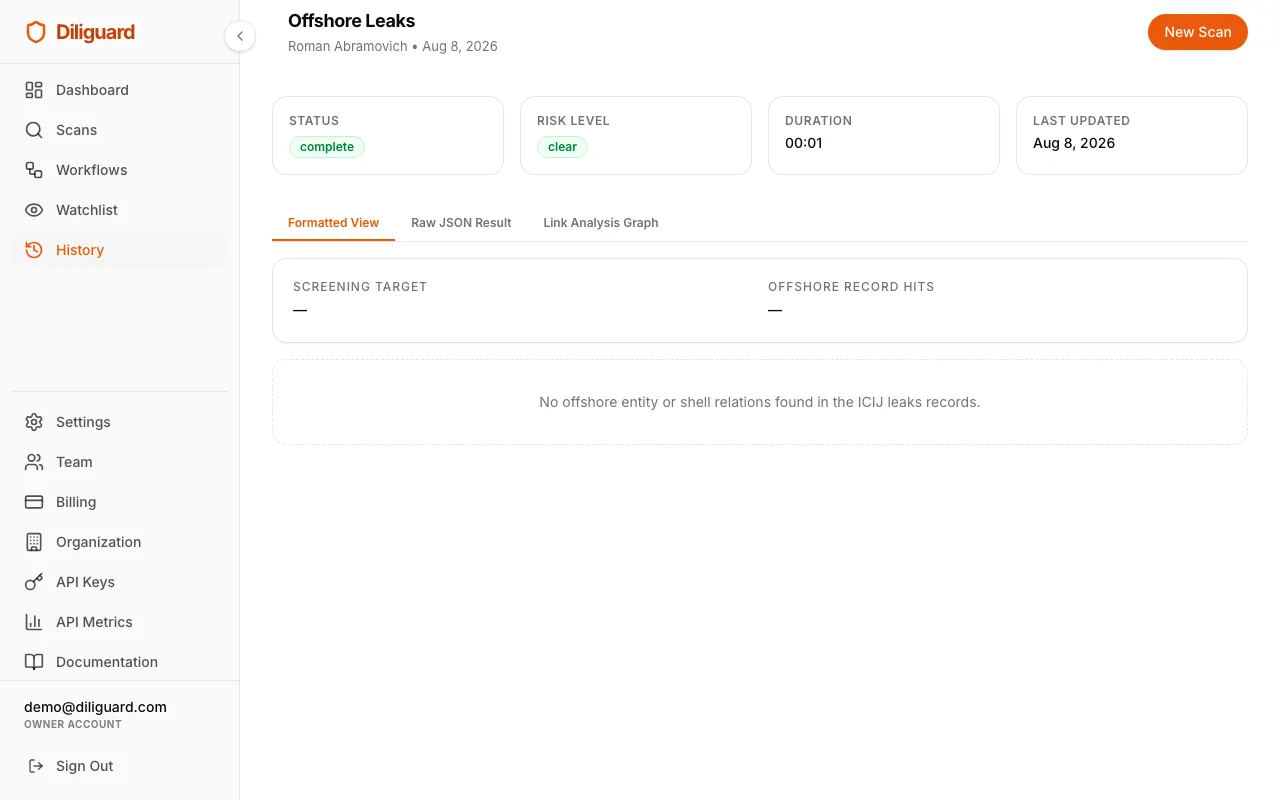
Offshore Leaks: ICIJ Shell Company & Tax Haven Search
This scan searches the ICIJ (International Consortium of Investigative Journalists) Offshore Leaks database for links to shell companies, tax havens, and offshore financial structures. The ICIJ database contains data from major investigations including the Panama Papers, Paradise Papers, and Pandora Papers.
When to use this: You want to find out whether a person or company is connected to offshore entities, shell companies, or structures in known tax havens. This is especially important for anti-money laundering and tax compliance checks.
What You Need to Enter:
| Field | Type | Required | Example |
|---|---|---|---|
| Entity or Person Name | Text | Yes | Entity or Person Name |
What the Results Show:
- Summary: shows the target name and the total number of offshore record hits.
- Offshore Entity Relations: each hit is shown in a card with an amber left border, containing:
- Entity Legal Name: the name of the offshore entity.
- Offshore Jurisdiction: where the entity is registered (for example, British Virgin Islands or Cayman Islands).
- Linked Address: the registered address of the entity.
- Source Database: which ICIJ investigation the data comes from (for example, Panama Papers or Paradise Papers).
- If no offshore connections are found, you will see “No offshore entity or shell relations found in the ICIJ leaks records.”
Related scans: For UK company ownership, use the UBO Scanner. For a full corporate check, use the Corporate KYC Workflow.
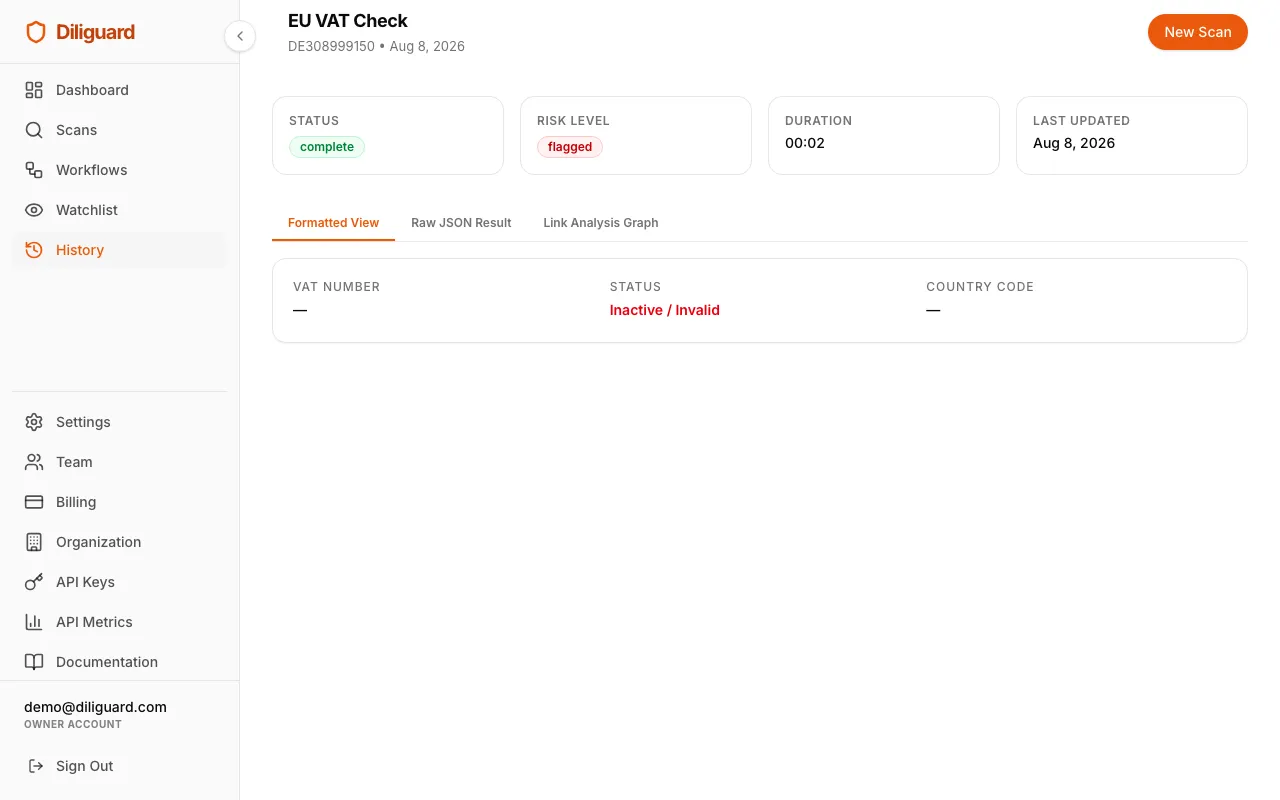
EU VAT Check: European VAT Number Validation
This scan validates a European VAT (Value Added Tax) number and confirms the registered business name and address through the official EU Commission VIES (VAT Information Exchange System). A valid VAT number means the company is registered for VAT in its country.
When to use this: You are onboarding a European supplier, vendor, or client and need to verify that their VAT number is valid and matches their registered business details. This is a standard step in EU-based due diligence and invoicing compliance.
What You Need to Enter:
| Field | Type | Required | Example |
|---|---|---|---|
| VAT Number | Text | Yes | DE123456789 |
Important: Always include the country code prefix (for example, DE for Germany, FR for France, or GB for the United Kingdom).
What the Results Show:
- Summary: shows the VAT number, its status (“Active/Valid” in green or “Inactive/Invalid” in red), and the country code.
- Verified Corporate Registry Details (only shown if the VAT number is valid):
- Registered Business Name: the official name of the company as registered for VAT.
- Registered Address: the company’s official registered address.
Related scans: For a broader company investigation, pair this with the Global Corporate Lookup (LEI) and UBO Scanner. Run all three with the Corporate KYC Workflow.
Scan Types: Financial Intelligence
These scans investigate cryptocurrency wallets and bank account numbers for risk indicators, sanctions connections, and activity status.
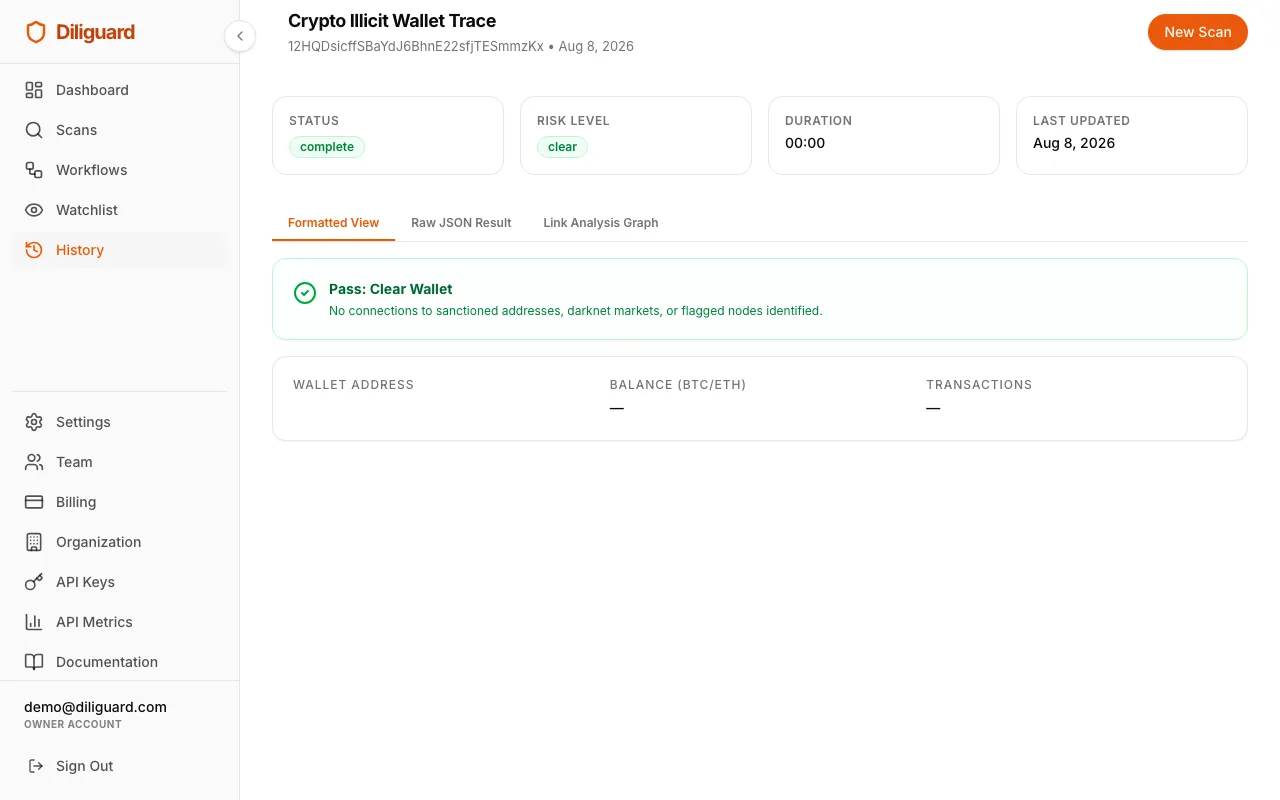
Crypto Illicit Wallet Trace: Malicious Crypto Wallet Check
This scan checks whether a cryptocurrency wallet address has been linked to known criminal activity, sanctioned wallets, or darknet markets. It cross-references the wallet against databases of wallets associated with hacking groups, ransomware, fraud, and other illicit activity.
When to use this: You are about to accept a cryptocurrency payment and want to verify that the wallet address sending or receiving funds is not connected to criminal activity. This is essential for crypto-related compliance.
What You Need to Enter:
| Field | Type | Required | Example |
|---|---|---|---|
| Wallet Address | Text | Yes | 1A1zP1eP5QGefi2DMPTfTL5SLmv7DivfNa |
What the Results Show:
- Alert Header: if the wallet is connected to illicit activity, you will see a red “Critical Alert: High Risk Wallet” banner. If the wallet is clean, you will see a green “Pass: Clear Wallet” banner.
- Wallet Card: shows the wallet address (in monospace), the current balance, and the total number of transactions.
- Associated Threats (if any): each threat is shown in a card with a red left border, containing the threat type (for example, “Lazarus Group” or “Sanctioned Wallet”) and the link depth (direct or indirect connection).
Related scans: For a broader crypto investigation, also check Crypto Sanctions and Crypto Activity. Run all three with the Crypto Investigation Workflow.
Crypto Sanctions: Sanctioned Crypto Address Screening
This scan checks whether a BTC or ETH address is connected to a sanctioned entity. While the Crypto Illicit Wallet Trace focuses on criminal activity, this scan specifically checks against government sanctions lists.
When to use this: You need to verify that a crypto wallet is not on a government sanctions list. This is a regulatory requirement for many financial institutions and crypto businesses.
What You Need to Enter:
| Field | Type | Required | Example |
|---|---|---|---|
| Wallet Address | Text | Yes | 1A1zP1eP5QGefi2DMPTfTL5SLmv7DivfNa |
What the Results Show:
The results follow the same format as the Crypto Illicit Wallet Trace. You will see:
- A red alert banner if the wallet is connected to a sanctioned entity, or a green clear banner if it is clean.
- The wallet card with address, balance, and transaction count.
- Associated Threats (if any) with the threat type and link depth.
Related scans: This scan is complementary to the Crypto Illicit Wallet Trace. Use both for a complete crypto risk assessment. Add Crypto Activity for balance and transaction details. Run all three with the Crypto Investigation Workflow.
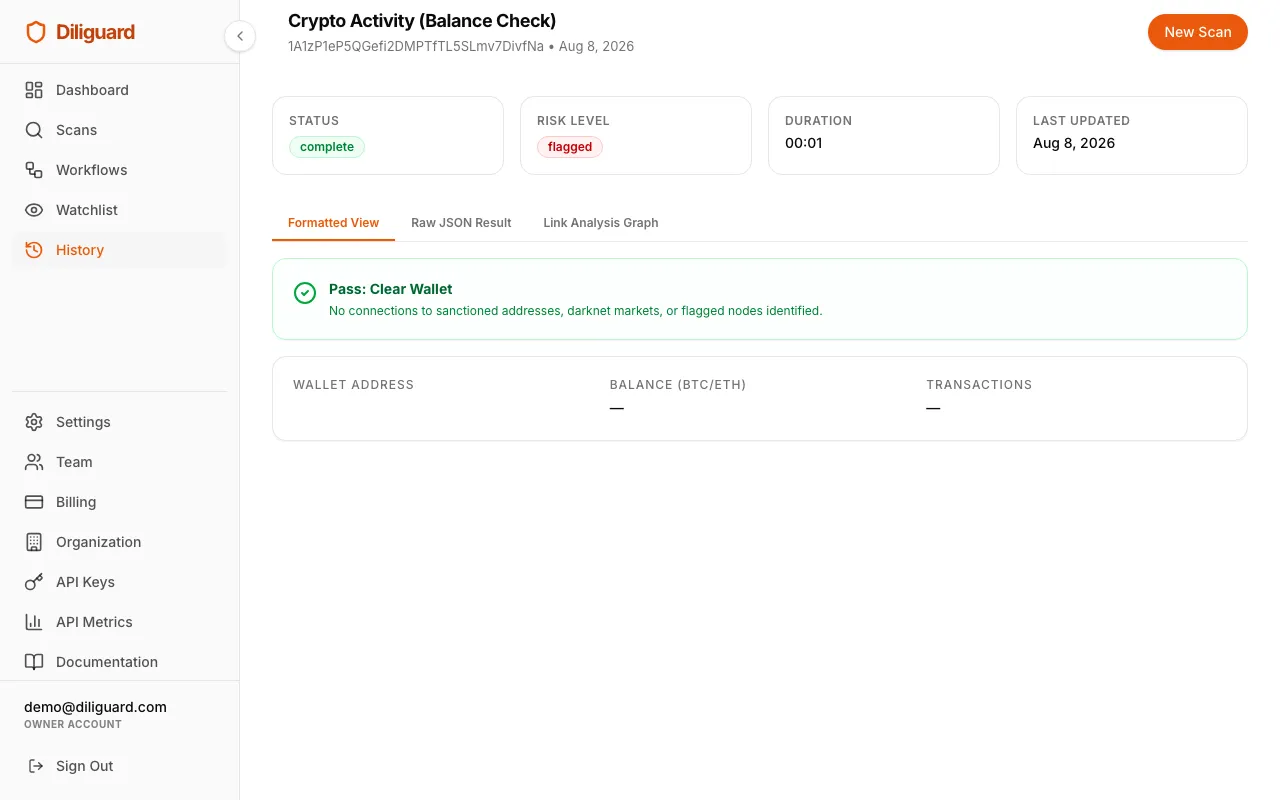
Crypto Activity (Balance Check): Cryptocurrency Wallet Balance Lookup
This scan pulls real-time balances and unspent transaction outputs (UTXOs) from public blockchain explorers. It tells you how much cryptocurrency a wallet holds and how many transactions it has made.
When to use this: You want to verify the balance and transaction history of a crypto wallet. This is useful for confirming that a counterparty actually holds the funds they claim, or for understanding the transaction activity on a wallet.
What You Need to Enter:
| Field | Type | Required | Example |
|---|---|---|---|
| Wallet Address | Text | Yes | 1A1zP1eP5QGefi2DMPTfTL5SLmv7DivfNa |
What the Results Show:
The results follow the same format as the other crypto scans. You will see:
- A status banner indicating whether the wallet is clear or has risk indicators.
- The wallet card showing the address, current balance (for example, “0.5 BTC”), and total transaction count.
Related scans: For a complete crypto investigation, combine this with the Crypto Illicit Wallet Trace and Crypto Sanctions using the Crypto Investigation Workflow.
IBAN Validator: International Bank Account Validation
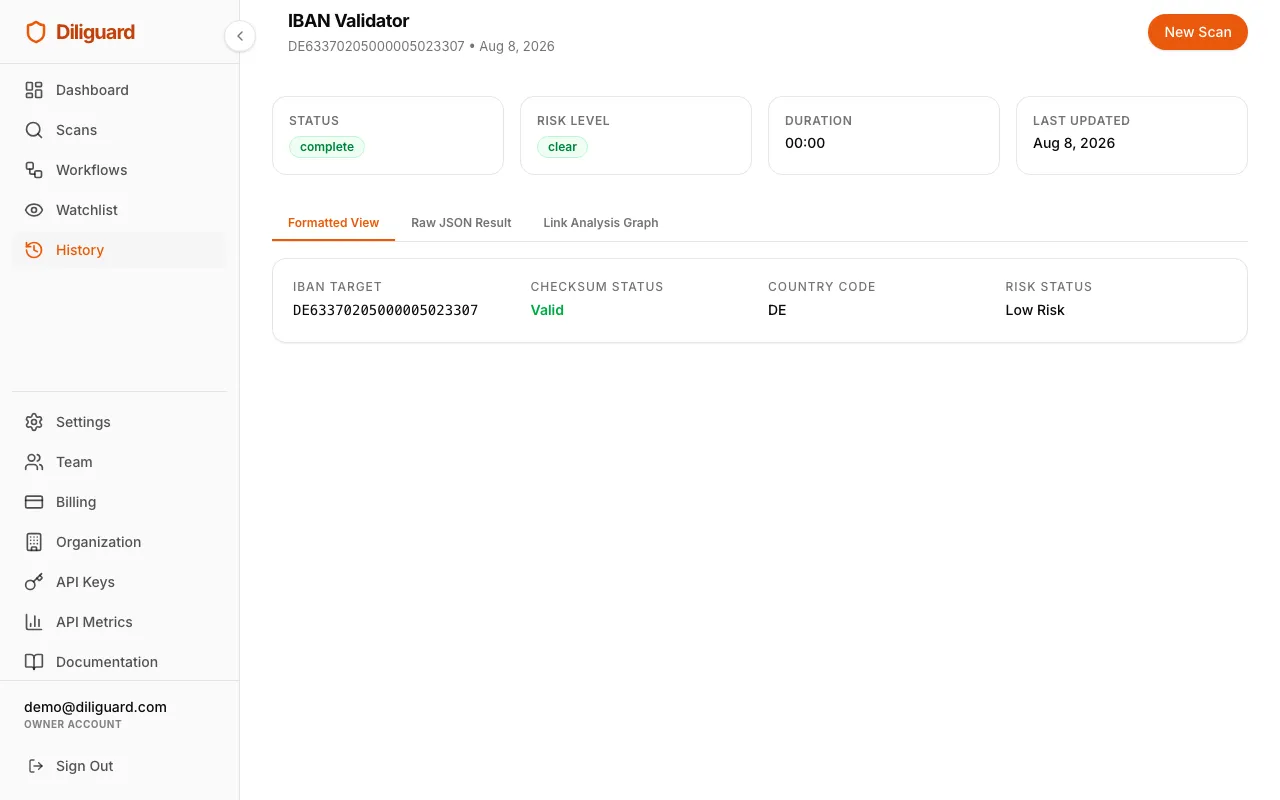
This scan validates the checksum of an International Bank Account Number (IBAN) and flags whether the country code is on a high-risk list. IBANs are used for international bank transfers, and validating them helps prevent fraud and errors.
When to use this: You have an IBAN from a client, vendor, or partner and want to verify it is a valid format, confirm which country the account is in, and check whether that country is considered high-risk by FATF or the European Commission.
What You Need to Enter:
| Field | Type | Required | Example |
|---|---|---|---|
| IBAN Number | Text | Yes | GB82WEST12345698765432 |
What the Results Show:
- Summary Card: shows the IBAN (in monospace), the checksum status (“Valid” in green or “Invalid” in red), the country code, and the risk status (“Low Risk” if no issues, or “High Risk” in red if flags exist).
- High-Risk Country Flag (if applicable): an amber warning banner explaining that the IBAN’s country code is associated with FATF or European Commission flagged jurisdictions. This does not mean the account is fraudulent, but it means you should exercise additional caution.
Related scans: For a broader company financial check, pair this with the EU VAT Check and Global Corporate Lookup (LEI). Run all checks with the Corporate KYC Workflow.
Running a Workflow
A workflow is a bundle of related scans that all run at the same time. Instead of running individual scans one by one, a workflow handles everything in a single step. This saves you time and gives you a complete picture in one report.
How to Run a Workflow
- Click Workflows in the sidebar.
- Choose a workflow from the list.
- Fill in the form. Required fields are marked with a red asterisk (*). Some fields are optional, so you can leave them blank if you do not have that information.
- Optionally, check Enable Continuous Monitoring to schedule recurring checks.
- Click Run Workflow.
- Wait for results. Workflows take longer than individual scans because they run multiple checks at once.
(Design: Workflow execution page screenshot showing the form and “Run Workflow” button.)
Reading Workflow Results
Workflow results are displayed differently from individual scans. You will see:
- A summary bar at the top showing all the modules that were checked.
- A tabbed view where you can click each module name to see its specific results.
- On desktop, the module tabs appear as a sidebar on the left.
- On mobile, a dropdown menu lets you switch between modules.
Each module’s results look the same as they would if you had run that scan individually.
Corporate KYC Workflow
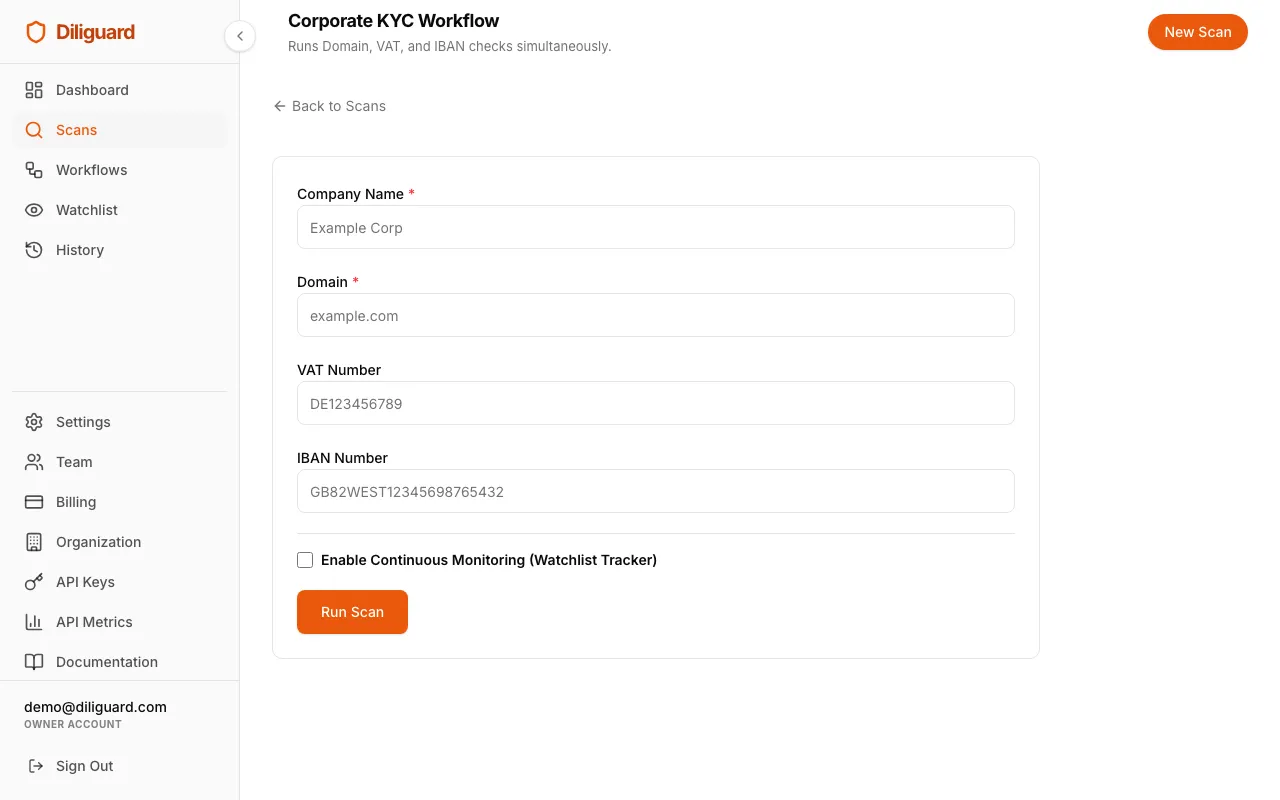
What it does: Runs Domain, VAT, and IBAN checks on a company simultaneously, while also cross-referencing the company name against Global Sanctions & Regulatory watchlists. This is the go-to workflow for verifying a new business partner or client.
When to use it: You are onboarding a new company as a client, vendor, or partner and want to quickly verify their digital presence (domain), tax registration (VAT), and banking details (IBAN).
What You Need to Enter:
| Field | Type | Required | Example |
|---|---|---|---|
| Company Name | Text | Yes | Example Corp |
| Domain | Text | Yes | example.com |
| VAT Number | Text | No | DE123456789 |
| IBAN Number | Text | No | GB82WEST12345698765432 |
What the Results Show:
The workflow runs three checks and presents them as separate modules you can click through:
| Module | Scan Type | What It Shows |
|---|---|---|
| Domain Info | Domain Scan | Domain registration, MX/SPF/DMARC status |
| VAT VIES Status | EU VAT Check | VAT validity, registered business name and address |
| IBAN Check | IBAN Validator | Checksum validity, country, risk status |
Tip: If you have all four fields filled in, you get the most complete result. But you only need the Company Name and Domain to run the workflow. The VAT and IBAN fields are optional.

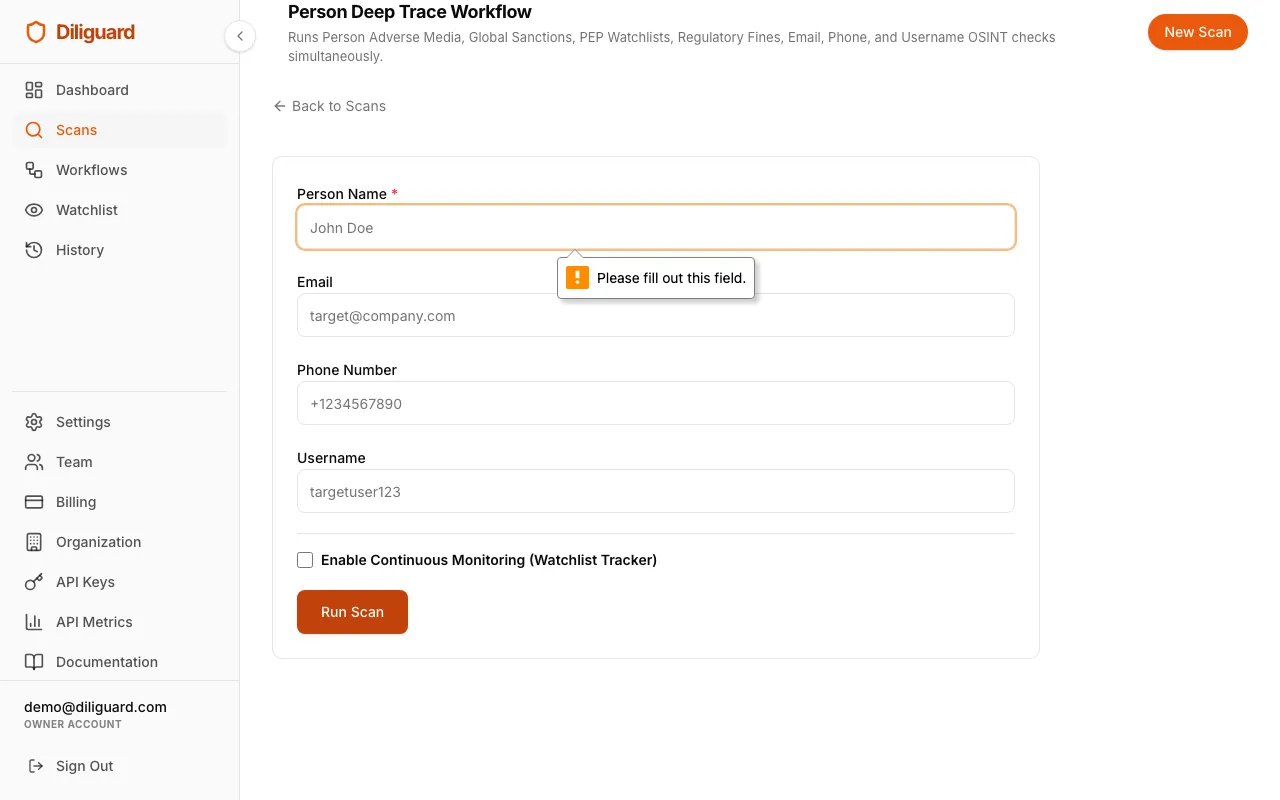
Person Deep Trace Workflow
What it does: Runs Person Adverse Media, Global Sanctions, PEP (Politically Exposed Persons), Regulatory Enforcement, Email OSINT, Phone, Username, and Dark Web checks on an individual simultaneously. This builds a complete picture of an individual’s digital footprint, news exposure, and AML risk.
When to use it: You are investigating a person, such as a potential client, employee, business partner, or subject of interest, and want to check their negative news coverage, watchlist status, email deliverability, phone number origin, and social media presence all at once.
What You Need to Enter:
| Field | Type | Required | Example |
|---|---|---|---|
| Person Name | Text | Yes | John Doe |
| No | target@company.com | ||
| Phone Number | Text | No | +1234567890 |
| Username | Text | No | targetuser123 |
What the Results Show:
The workflow runs multiple checks and presents them as separate modules:
| Module | Scan Type | What It Shows |
|---|---|---|
| Person Adverse Media | Adverse Media | Negative news coverage, legal issues, or reputational risks |
| PEP & Interpol | PEP & Interpol Scanner | Politically exposed person status and law enforcement lists |
| Person Regulatory | Regulatory Scanner | Regulatory fines, court sanctions, and enforcement history |
| Person Sanctions | Sanctions / AML | OFAC, UN, EU, and global sanctions watchlist hits |
| Email Footprint | Email OSINT (Trace) | DNS, SMTP, WHOIS, social media links |
| Phone Footprint | Phone Scan | Country, carrier, line type, timezone |
| Social Profiles | Username Scan | Platforms found, profile links |
| Dark Web Leaks | Dark Web Dumps | Credential leaks, breach exposure |
Tip: You only need the Person Name to run this workflow. The more additional fields you provide (email, phone, username), the more comprehensive the results will be.
Crypto Investigation Workflow
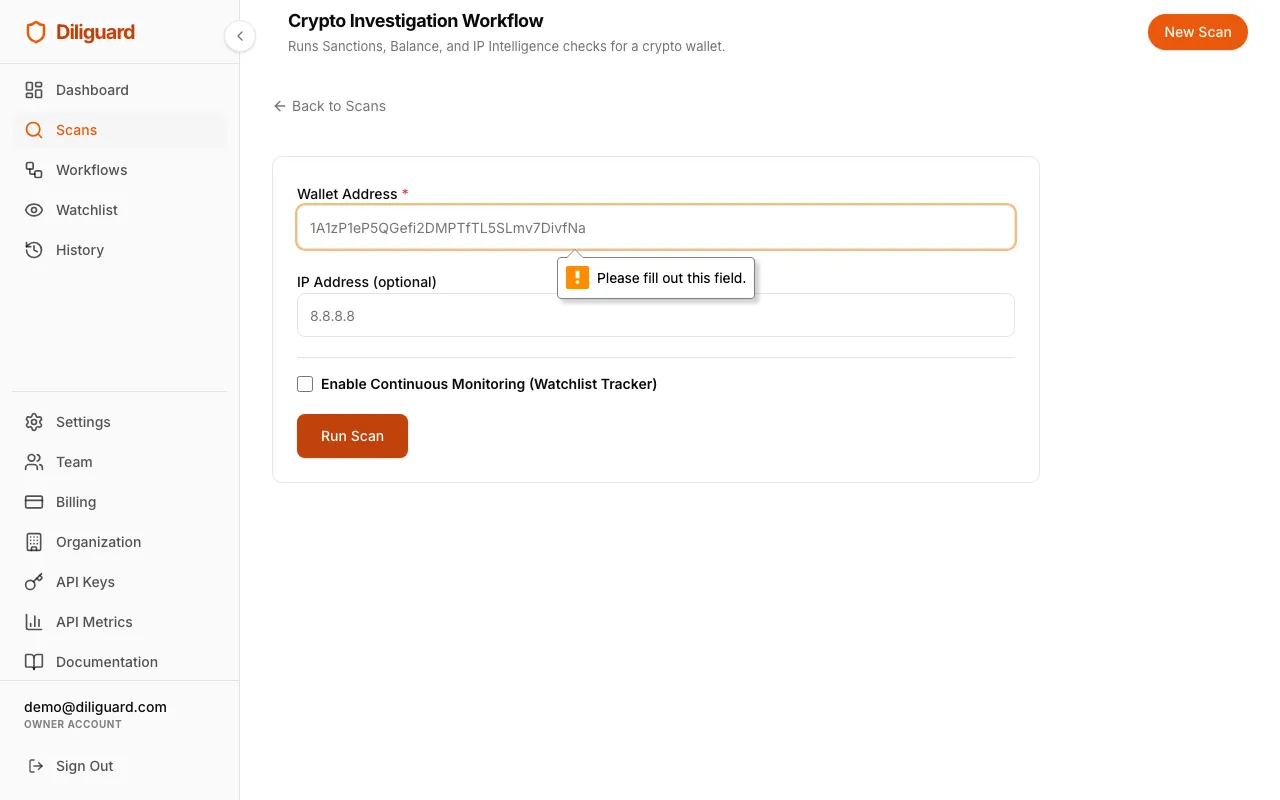
What it does: Runs Sanctions, Balance, and IP Intelligence checks for a crypto wallet. This is the most thorough crypto-specific check available.
When to use it: You are about to accept a cryptocurrency payment, onboard a crypto-related client, or investigate a wallet for compliance purposes. This workflow checks the wallet against sanctions lists, pulls its balance and transaction history, and checks the network origin if an IP address is provided.
What You Need to Enter:
| Field | Type | Required | Example |
|---|---|---|---|
| Wallet Address | Text | Yes | 1A1zP1eP5QGefi2DMPTfTL5SLmv7DivfNa |
| IP Address | Text | No | 8.8.8.8 |
What the Results Show:
The workflow runs three checks:
| Module | Scan Type | What It Shows |
|---|---|---|
| Crypto Activity | Crypto Activity | Balance, transaction count |
| Crypto Threats | Crypto Illicit Wallet Trace | Criminal/sanctioned wallet connections |
| IP Geo Intel | IP Intelligence | Geolocation, proxy/VPN detection |
Tip: The IP Address field is optional but recommended. If you have the IP address associated with the wallet activity, adding it provides a more complete risk picture.
Vendor Risk Workflow
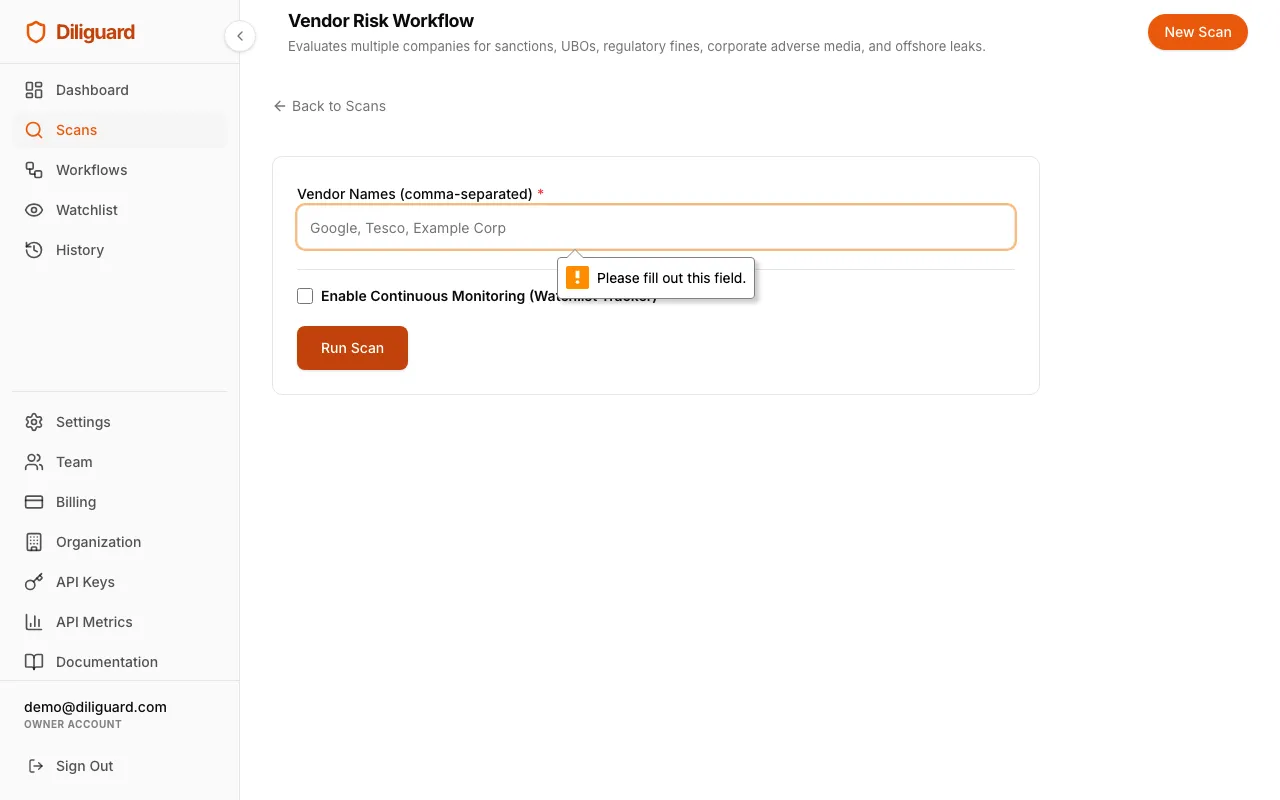
What it does: Evaluates multiple companies at once for sanctions, beneficial owners, and regulatory fines. This is designed for batch screening of suppliers, vendors, or business partners.
When to use it: You have a list of companies you work with (or plan to work with) and want to screen them all in a single operation. This is much faster than running individual scans on each company.
What You Need to Enter:
| Field | Type | Required | Example |
|---|---|---|---|
| Vendor Names | Text | Yes | Google, Tesco, Example Corp |
Important: Enter multiple company names separated by commas. Each name will be checked individually.
What the Results Show:
The workflow runs checks on each vendor and presents results organized by vendor and check type. For each company, you will see results from:
| Module | Scan Type | What It Shows |
|---|---|---|
| LEI Registration | Global Corporate Lookup (LEI) | Company registration details |
| Beneficial Owners | UBO Scanner | Ownership structure (UK companies) |
| Regulatory Fines | Regulatory Enforcement Scanner | Regulatory penalties |
| PEP Check | PEP & Interpol Scanner | Political exposure |
| Sanctions | Sanctions / AML | Sanctions list matches |
| Adverse Media | Adverse Media | Negative press coverage |
Ultimate Fraud / EDD Workflow
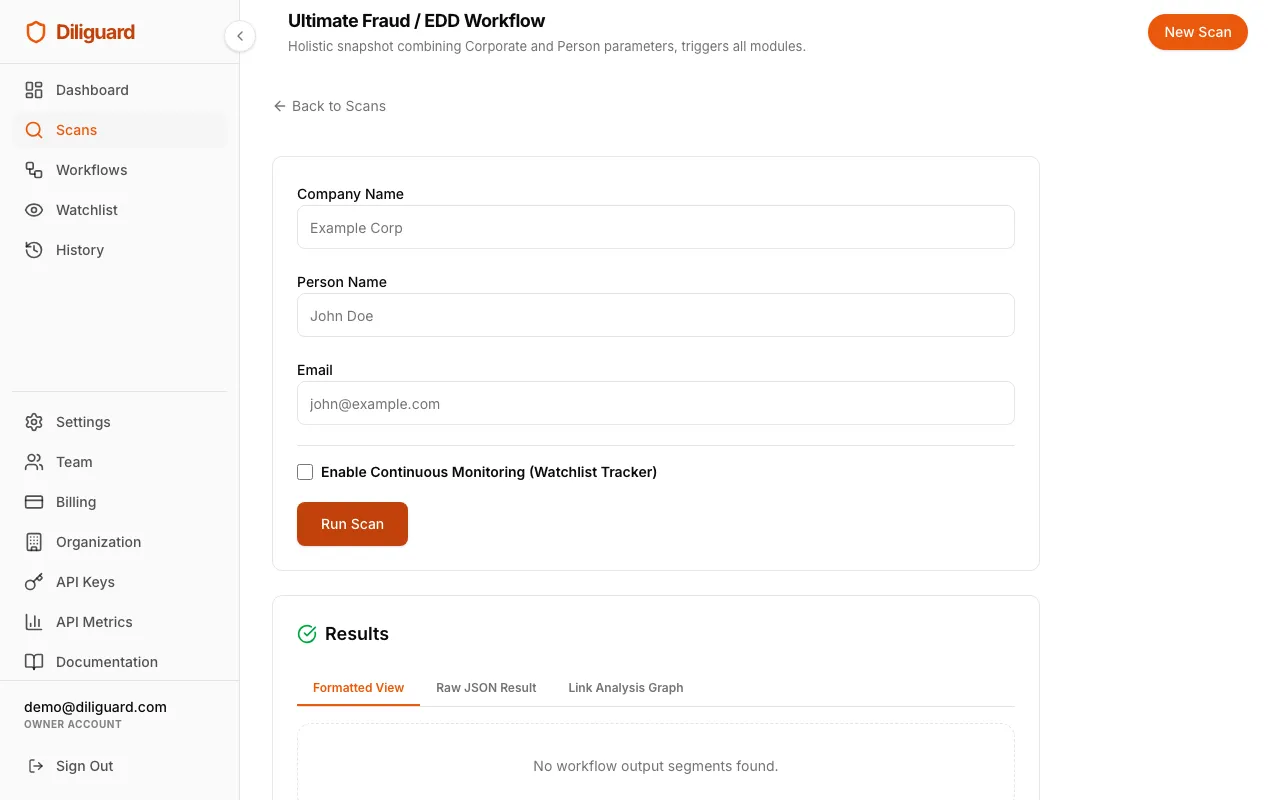
What it does: This is the most thorough and comprehensive check available in Diliguard. It combines corporate and personal data and triggers every available module in the system. EDD stands for Enhanced Due Diligence, a deeper level of investigation required for high-risk clients, large transactions, or regulatory requirements.
When to use it: You are dealing with a high-risk situation, such as a large financial transaction, a politically exposed person, a client from a high-risk jurisdiction, or any situation where standard checks are not enough. This workflow leaves no stone unturned.
What You Need to Enter:
| Field | Type | Required | Example |
|---|---|---|---|
| Company Name | Text | No | Example Corp |
| Person Name | Text | No | John Doe |
| No | john@example.com |
Important: All three fields are optional, but the more you provide, the more comprehensive the results. At least one field should be filled in for meaningful results.
What the Results Show:
This workflow triggers the widest range of modules available. Depending on what information you provided, you may see results from any combination of:
| Module | Scan Type | What It Shows |
|---|---|---|
| LEI Registration | Global Corporate Lookup (LEI) | Corporate registration |
| Beneficial Owners | UBO Scanner | Ownership structure |
| Corporate Adverse Media | Adverse Media | Company press coverage |
| Corporate Regulatory | Regulatory Enforcement Scanner | Company regulatory fines |
| Corporate Sanctions | Sanctions / AML | Company sanctions matches |
| Offshore Leaks | Offshore Leaks | Shell company connections |
| Email Footprint | Email OSINT (Trace) | Email verification and social links |
| Dark Web Leaks | Dark Web Dumps | Credential exposure |
| Person Adverse Media | Adverse Media | Person press coverage |
| PEP & Interpol | PEP & Interpol Scanner | Political exposure |
| Person Regulatory | Regulatory Enforcement Scanner | Person regulatory fines |
| Person Sanctions | Sanctions / AML | Person sanctions matches |
Tip: This workflow is the most powerful tool in Diliguard. Use it when you need the fullest possible picture. Keep in mind that it takes longer to complete because it runs so many checks simultaneously.
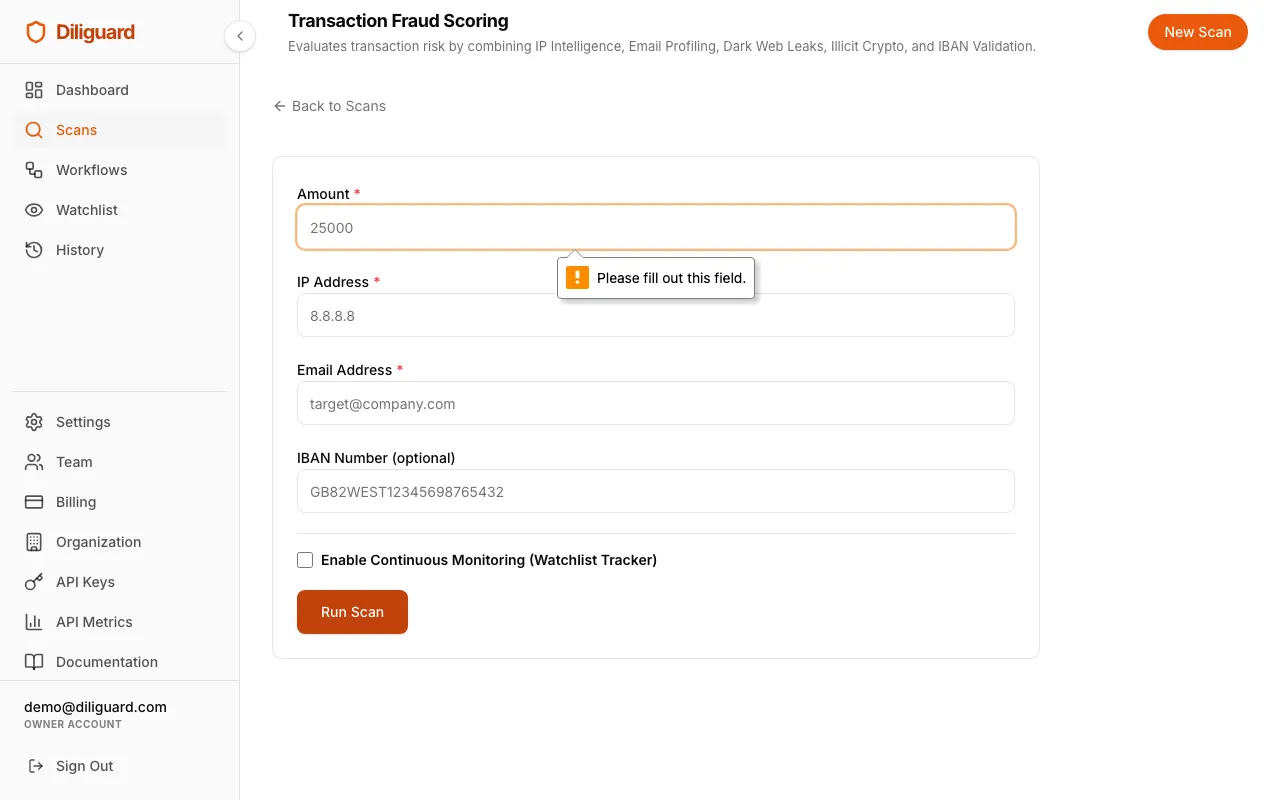
Transaction Fraud Scoring
What it does: Evaluates transaction risk by combining IP Intelligence, Email Profiling, Dark Web Leaks, Illicit Crypto, and IBAN Validation.
When to use it: You are reviewing an online purchase, a money transfer, or a new account signup and need to rapidly determine if the associated IP address, email, or bank details show signs of fraud. These signs include disposable email, VPN usage, dark web breach exposure, or an invalid IBAN.
What You Need to Enter:
| Field | Type | Required | Example |
|---|---|---|---|
| Amount | Text | Yes | 25000 |
| IP Address | Text | Yes | 8.8.8.8 |
| Email Address | Yes | target@company.com | |
| IBAN Number | Text | No | GB82WEST12345698765432 |
What the Results Show:
| Module | Scan Type | What It Shows |
|---|---|---|
| IP Geo Intel | IP Intelligence | Proxy/VPN detection and risk score |
| Email Footprint | Email OSINT (Trace) | Email validity, disposable check, and domain age |
| Dark Web Leaks | Dark Web Dumps | Breached credential exposure for transaction email |
| IBAN Check | IBAN Validator | Checksum validity, country, risk status |
Institutional AML & PEP Screening
What it does: Screens global watchlists for Politically Exposed Persons (PEPs), Sanctions, Adverse Media, Regulatory Fines, and Offshore Leaks simultaneously.
When to use it: You need a complete, audit-ready compliance check of an individual or entity strictly against global regulatory watchlists, sanctions, news exposure, and Interpol lists.
What You Need to Enter:
| Field | Type | Required | Example |
|---|---|---|---|
| Target Name | Text | Yes | Nicolas Maduro |
What the Results Show:
| Module | Scan Type | What It Shows |
|---|---|---|
| Sanctions | Sanctions / AML | Matches on OFAC, UN, EU, and global sanctions lists |
| PEP & Interpol | PEP & Interpol Scanner | Political exposure and law enforcement red notices |
| Adverse Media | Adverse Media | Negative news coverage, legal issues, or reputational risks |
| Regulatory Fines | Regulatory Enforcement Scanner | Regulatory penalties and court enforcement |
| Offshore Leaks | Offshore Leaks | Tax haven registry and shell company matches |
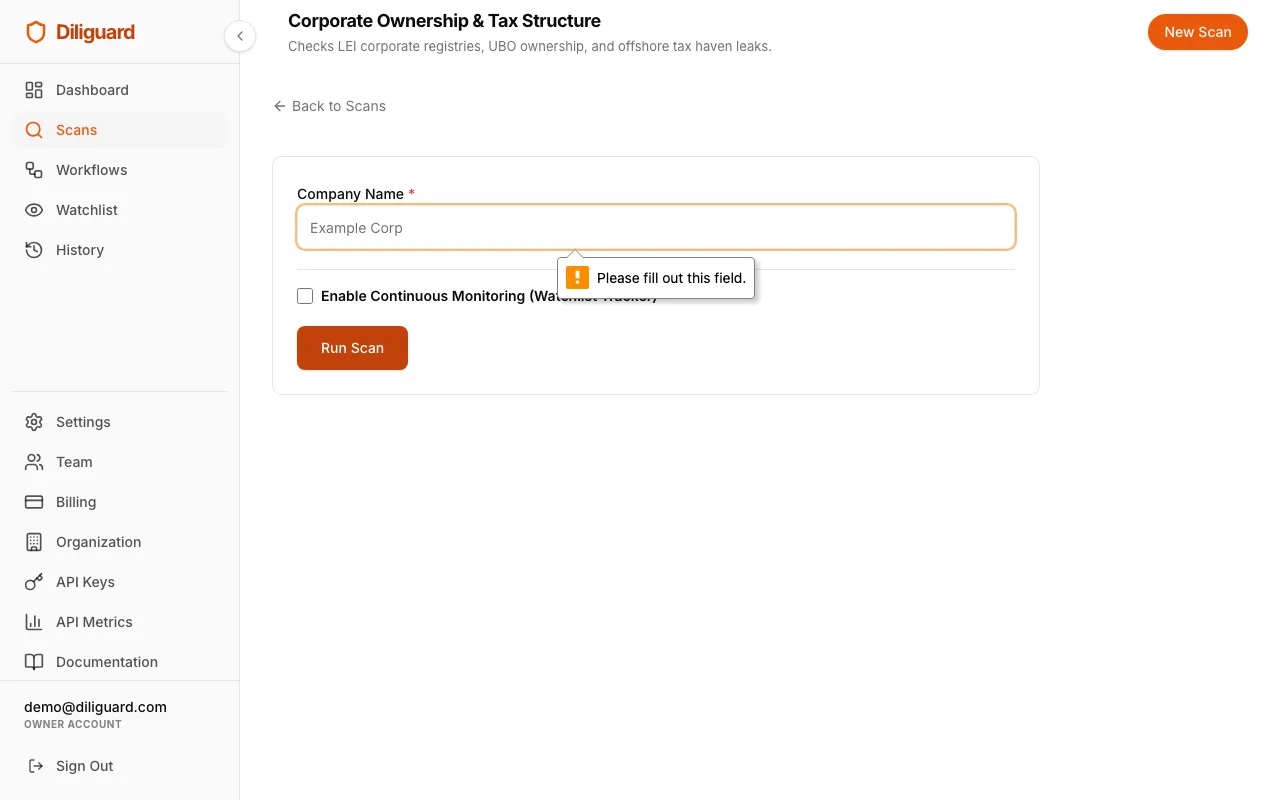
Corporate Ownership & Tax Structure
What it does: Checks LEI (Global Legal Entity Identifier Foundation), UBO registries, and Offshore Tax Haven leaks for deep corporate structures.
When to use it: You need to verify the legal registration status of a company globally, identify its beneficial owners, and cross-reference tax haven shell company records to satisfy Know Your Business (KYB) compliance requirements.
What You Need to Enter:
| Field | Type | Required | Example |
|---|---|---|---|
| Company Name | Text | Yes | Example Corp |
What the Results Show:
| Module | Scan Type | What It Shows |
|---|---|---|
| LEI Registration | Global Corporate Lookup (LEI) | Company registration details and legal entity data |
| Beneficial Owners | UBO Scanner | Corporate structure and key personnel |
| Offshore Leaks | Offshore Leaks | ICIJ tax haven ownership and shell company matches |
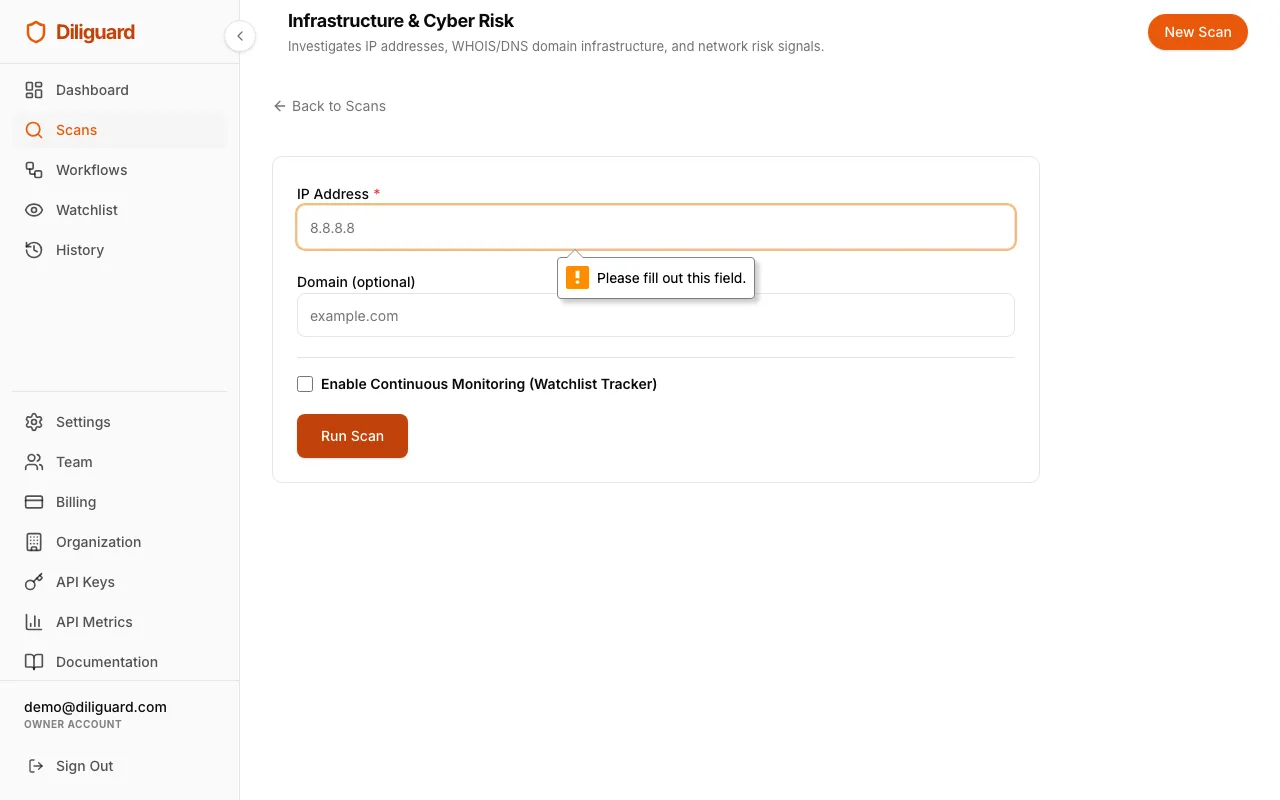
Infrastructure & Cyber Risk
What it does: Investigates IP addresses and domain infrastructure for VPNs, Proxies, Datacenters, WHOIS/DNS, and network risks.
When to use it: You have an IP address or domain from a server log, security incident, or partner system and need to evaluate its geographical location, network provider, and domain infrastructure.
What You Need to Enter:
| Field | Type | Required | Example |
|---|---|---|---|
| IP Address | Text | Yes | 8.8.8.8 |
| Domain | Text | No | example.com |
What the Results Show:
| Module | Scan Type | What It Shows |
|---|---|---|
| IP Geo Intel | IP Intelligence | Geolocation, ISP, ASN, and VPN/Proxy risk flags |
| Domain Info | Domain Scan | WHOIS registration, DNS records, MX/SPF/DMARC status |
Continuous Monitoring (Watchlist)
Continuous monitoring lets Diliguard automatically re-run scans on a schedule. This is useful for keeping track of people or companies you work with over time.
How Monitoring Works
- When you run a scan or workflow, check the Enable Continuous Monitoring box.
- Choose how often to re-run. The options are Daily, Weekly, Monthly, Quarterly, or Yearly.
- After the scan completes, the target is added to your Watchlist and will be checked again automatically at the interval you chose.
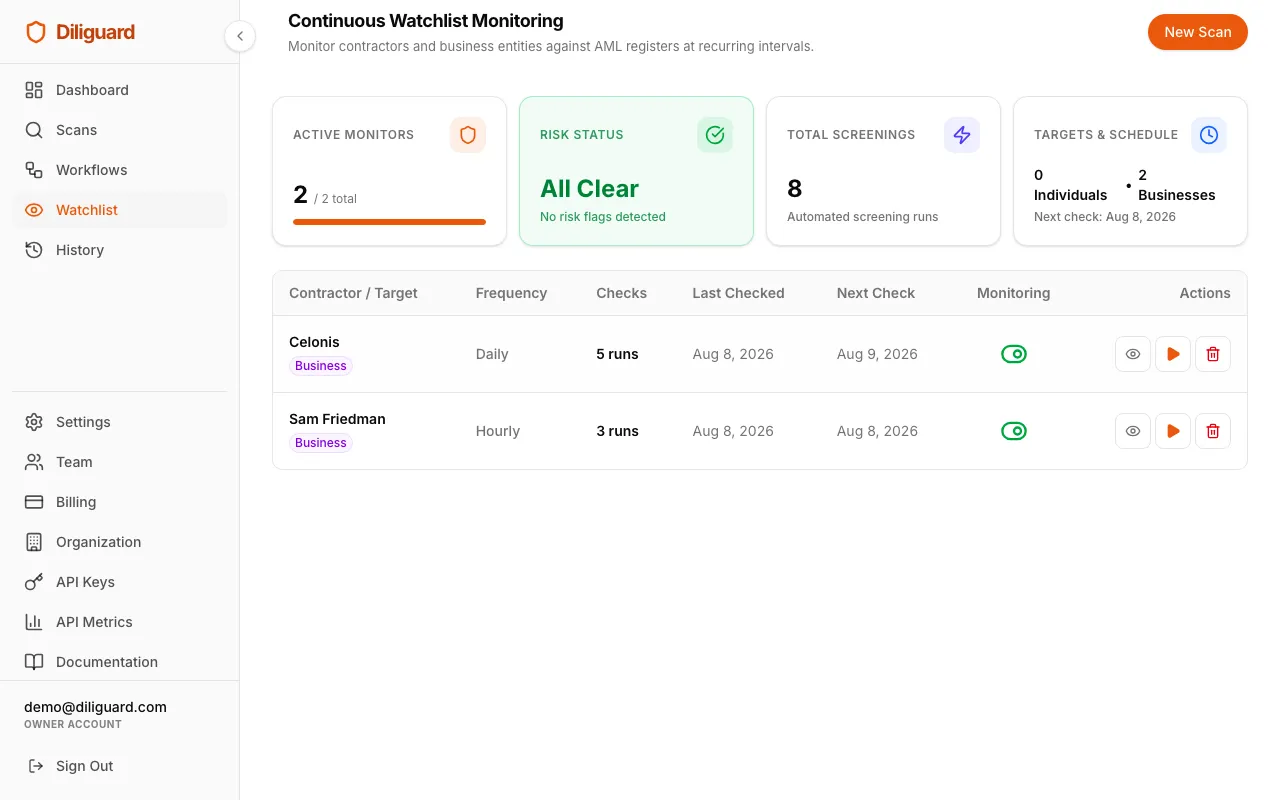
Managing Your Watchlist
Click Watchlist in the sidebar to see all your monitored targets.
The Watchlist page shows:
- Active Monitors: how many monitors are running out of your plan limit, complete with a visual capacity progress bar.
- Risk Status: real-time compliance status showing green (“All Clear”) when all entities pass or red (“Flagged”) when compliance attention is needed.
- Total Screenings: the total number of automated screening checks executed across your entire watchlist.
- Targets & Schedule: the breakdown of monitored Individuals vs. Businesses and the date of your next scheduled background check.
Below the summary cards, a table lists every monitored target with:
| Column | What It Shows |
|---|---|
| Contractor / Target | The name of the person or company, with a badge showing if they are an Individual or Business. |
| Frequency | How often the check runs (for example, Monthly). |
| Checks | The total number of times the scan has been run. |
| Last Checked | The date of the most recent scan. |
| Next Check | The estimated date of the next scan. |
| Monitoring | A toggle to pause or resume monitoring. |
Actions You Can Take
For each monitored target, you have three actions:
| Action | What It Does |
|---|---|
| View Last Report (eye icon) | Opens the results from the most recent scan right on the page. |
| Run Immediate Screening (play icon) | Forces an immediate re-scan without waiting for the next scheduled run. |
| Remove Monitor (trash icon) | Deletes the monitor. A confirmation box will appear to make sure you want to remove it. Past scan results are kept in your history. |
You can also pause monitoring by clicking the toggle switch. Pausing stops the automatic checks but keeps the monitor in your list. Click the toggle again to resume.

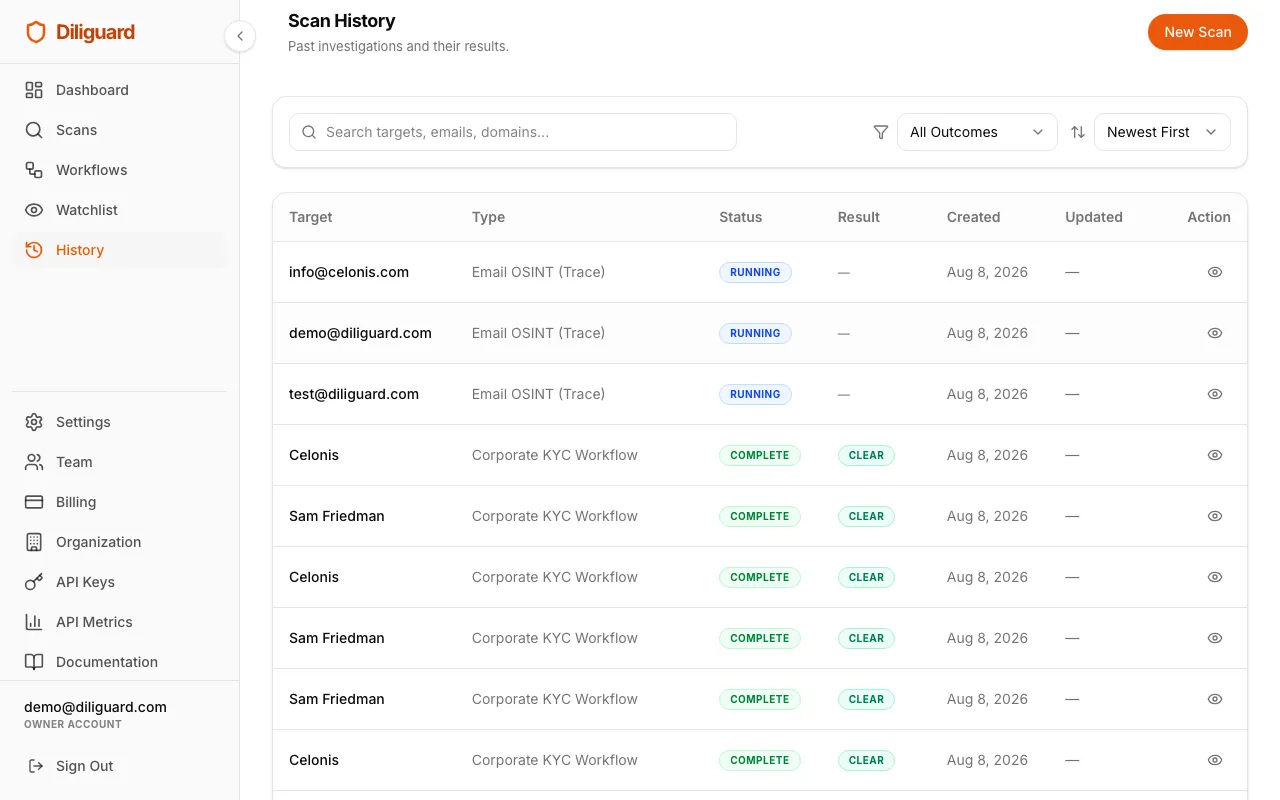
Scan History
Your scan history keeps a record of every scan and workflow you have ever run.
Viewing Your History
Click History in the sidebar. You will see a table listing all your past scans with:
| Column | What It Shows |
|---|---|
| Target | The name or email that was scanned. |
| Type | The kind of scan that was run. |
| Status | Whether the scan completed, failed, or is still in progress. |
| Result | Whether the target was Clear (green) or Flagged (red). |
| Created | When the scan was started. |
| Updated | When the scan was last updated. |
Searching and Filtering
Use the controls at the top of the table to find what you need:
- Search box: type a target name, email, or domain to filter results.
- Status filter: choose from All Outcomes, Clear (Passed), Flagged (Alerts), In Progress, or Failed/Error.
- Sort: choose how to order the results. The options are Newest First, Oldest First, Target A-Z, or Target Z-A.
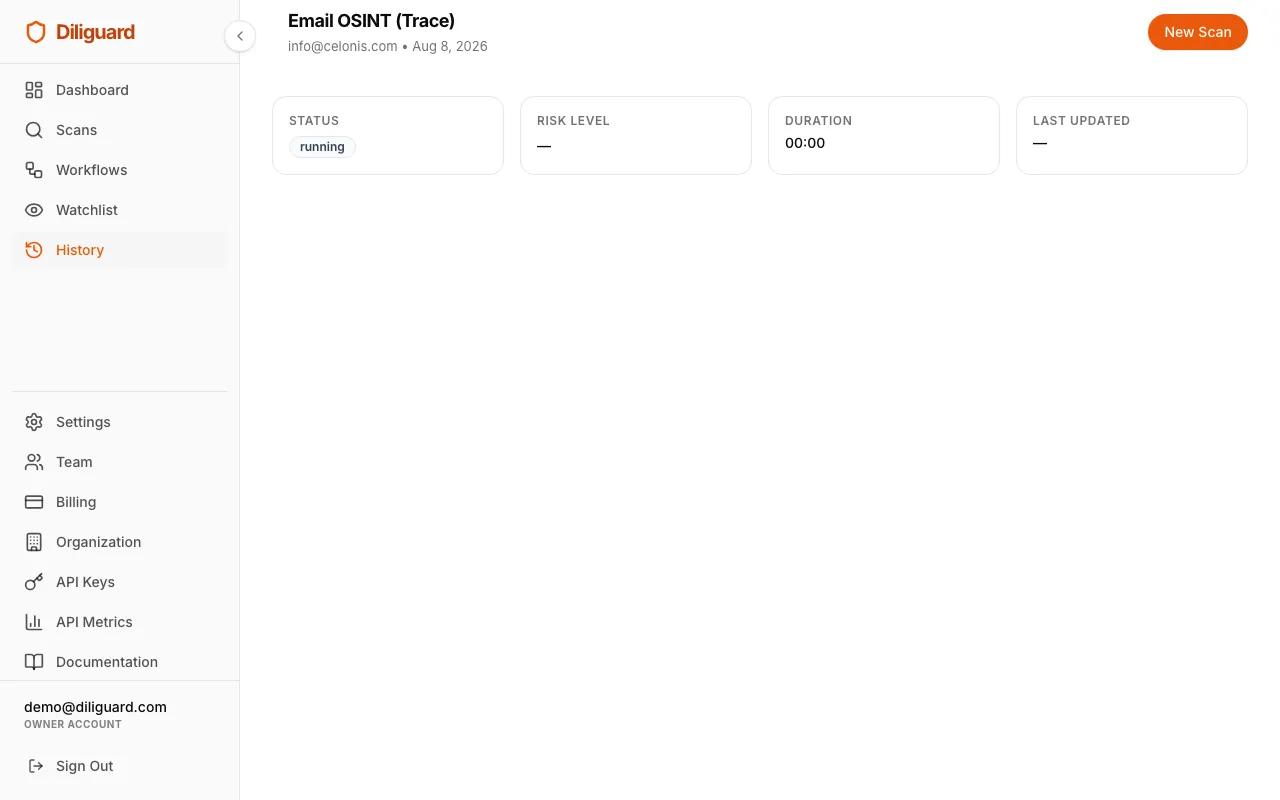
Viewing a Past Scan
Click any row in the history table to open the full details of that scan. You will see:
- Status, Risk Level, Duration, and Last Updated at the top.
- The full scan results in the same three-view format (Formatted, Raw JSON, Link Analysis Graph).
- A Run Similar Scan button that takes you back to the scan form pre-configured for the same scan type.
Account Settings
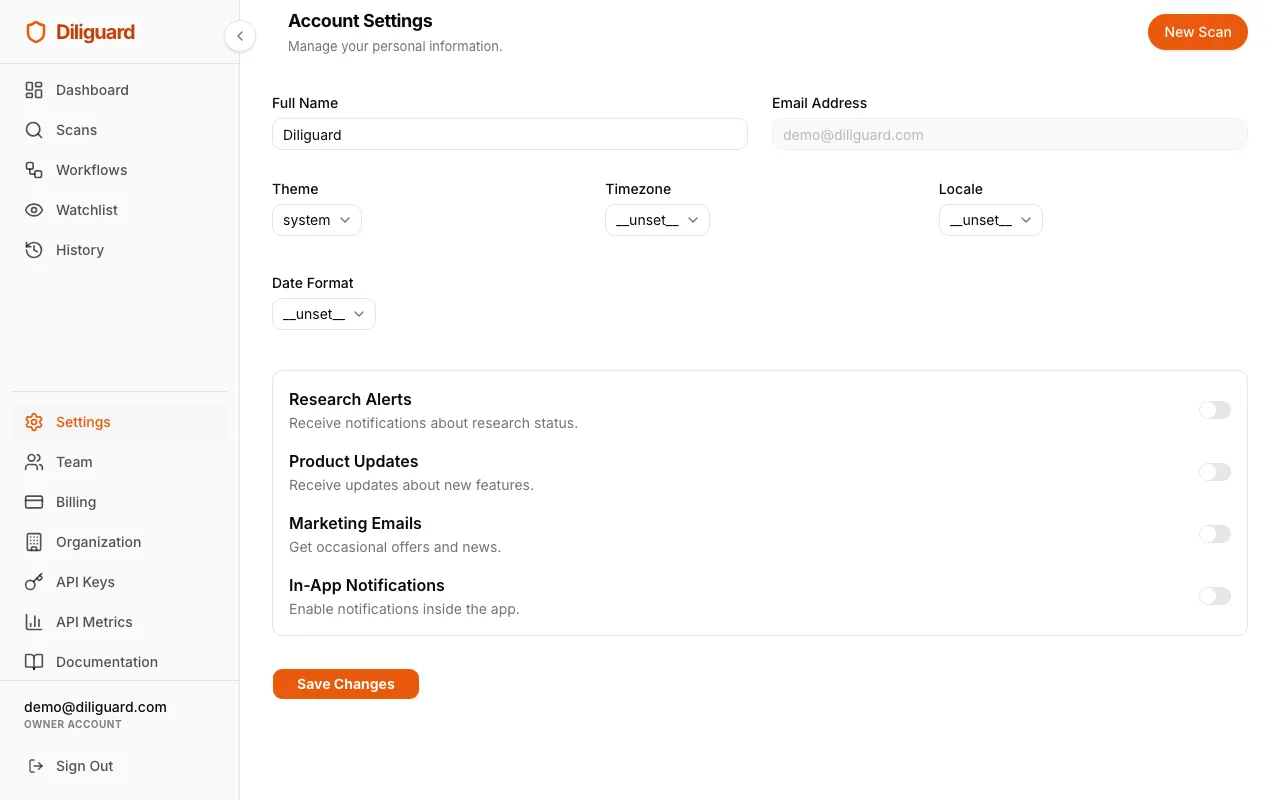
Click Settings in the sidebar to manage your personal account.
Personal Information
- Full Name: your name as it appears in the system. You can edit this at any time.
- Email Address: your login email. This cannot be changed from this page.
Preferences
- Theme: choose between System (follows your device), Light, or Dark mode.
- Timezone: select your timezone so dates and times display correctly.
- Locale: choose your language and region format (for example, en-US, en-GB, or fr-FR).
- Date Format: choose how dates are displayed. The options are MM/DD/YYYY, DD/MM/YYYY, YYYY-MM-DD, or DD MMM YYYY.
Notification Preferences
You can turn these on or off:
| Setting | What It Controls |
|---|---|
| Research Alerts | Notifications about your scan and research activity. |
| Product Updates | News about new features in Diliguard. |
| Marketing Emails | Occasional offers and news. |
| In-App Notifications | Notifications shown inside the app. |
After making changes, click Save Changes.
Team Management
> Note: Only users with the Owner or Admin role can see the Team page in the sidebar.
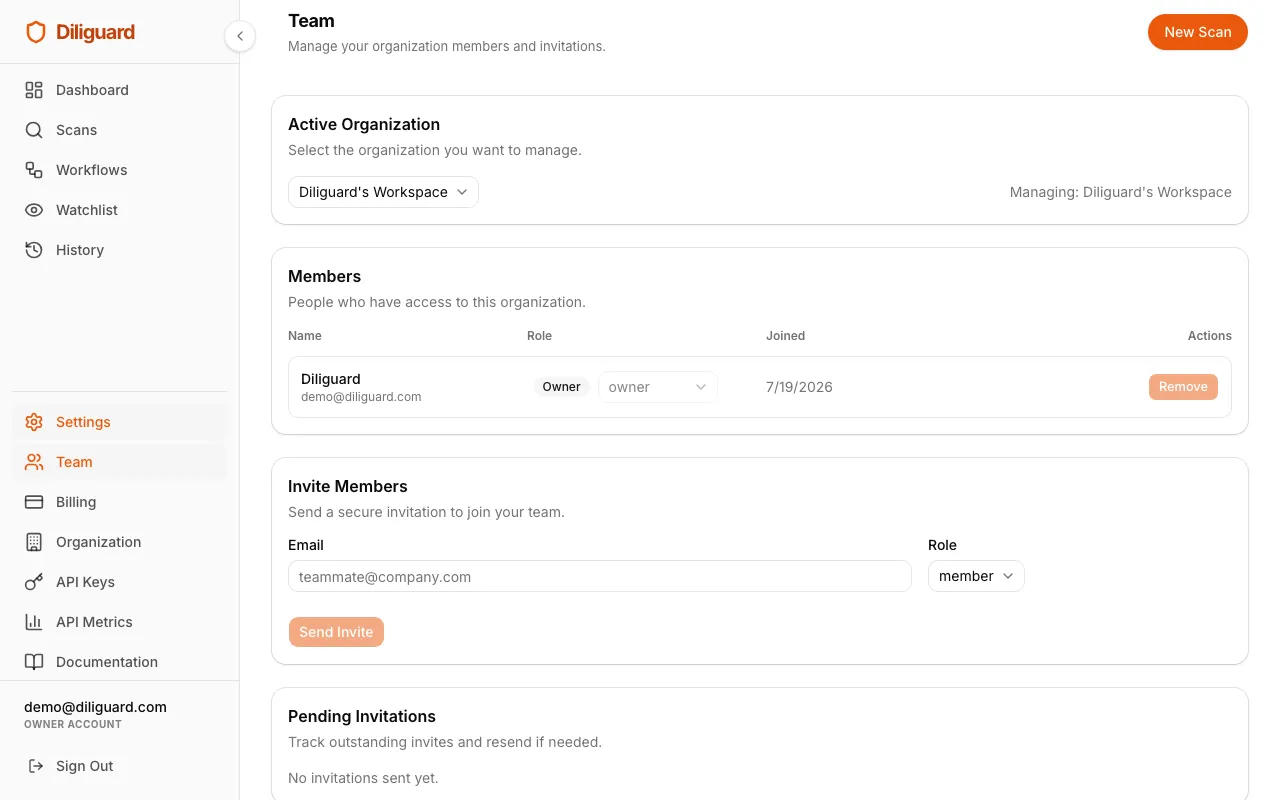
Click Team in the sidebar to manage your organization’s members.
Switching Organizations
If you belong to more than one organization, use the dropdown at the top to switch between them.
Viewing Members
A table lists everyone in your organization with their name, email, role, and the date they joined.
Changing a Member’s Role
Owners can change a member’s role using the dropdown next to their name. The available roles are:
- Owner: full control over the organization, billing, and team.
- Admin: can manage most settings but cannot change billing or remove other admins.
- Member: can run scans and use the platform but cannot manage team or billing.
Removing a Member
Owners can remove someone from the organization by clicking the Remove button next to their name. The removed person will lose access to the organization’s scans and data.
Inviting New Members
- Type the person’s email address in the invite field.
- Choose their role (Admin or Member).
- Click Send Invite.
The invitation is valid for 7 days. You can resend or revoke invitations from the Pending Invitations table.
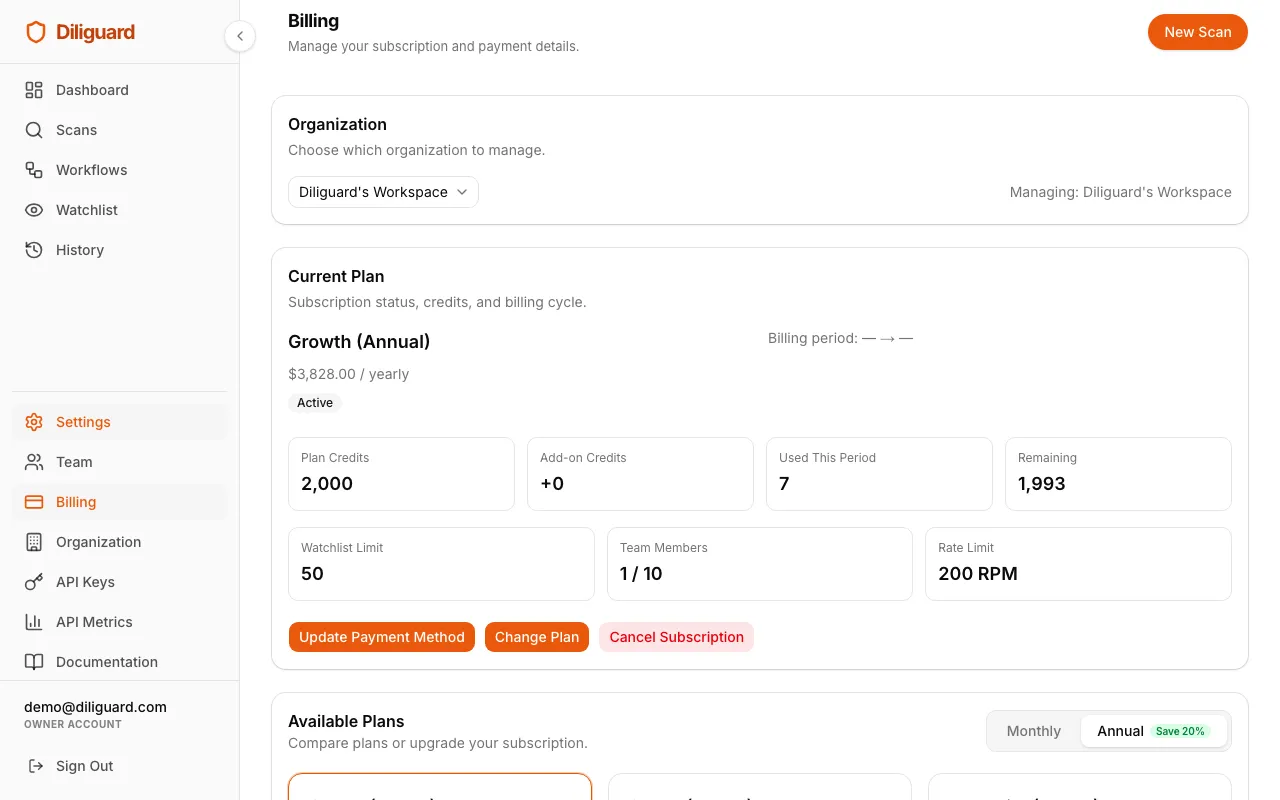
Billing
> Note: Only users with the Owner role can manage billing. Admins and Members can see the Billing page but cannot make changes.
Click Billing in the sidebar to view and manage your subscription.
Current Plan
If you have an active subscription, you will see:
- The plan name and price.
- The current billing period.
- Your trial end date (if applicable).
Choosing a Plan
If you do not have an active subscription, you will see available plans to choose from. Each plan shows its price, member limit, and other details. Click Subscribe on the plan you want. You will be redirected to a secure payment page.
Usage
Your current usage is shown as:
- Members: how many seats are used out of your plan’s limit.
- Projects and Storage: additional limits depending on your plan.
Billing Details
You can set your billing name, email, and address. This information is used for invoices.
Invoices
A table lists your past invoices with the description, status, amount, and date. You can download each invoice if needed.
Organization Settings
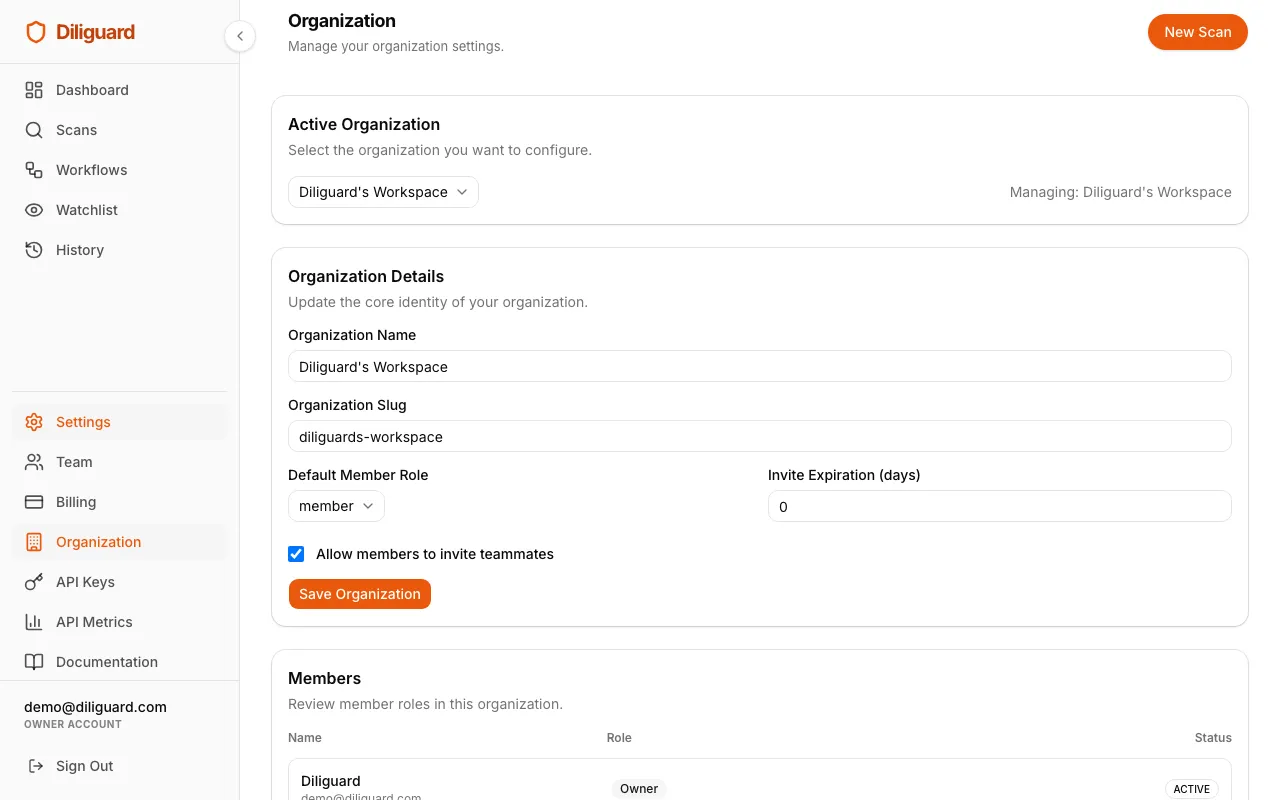
> Note: Only users with the Owner role can edit organization settings. Admins and Members can see the page but the fields are locked.
Click Organization in the sidebar to manage your organization’s details.
What You Can Change
- Organization Name: the display name of your organization.
- Organization Slug: a short URL-friendly identifier.
- Default Member Role: the role given to new members by default (Admin or Member).
- Invite Expiration: how many days an invitation stays valid before it expires.
- Allow members to invite teammates: toggle this on or off to let non-owners send invitations.
Click Save Organization after making changes.
You will also see a read-only list of your current members at the bottom of the page.
Navigation Guide
Desktop (Large Screens)
On a desktop or laptop, navigation is split into two areas:
- Left Sidebar: contains all your main navigation links. You can collapse the sidebar to save space by clicking the small arrow button on its edge.
- Top Header: displays the current page title and description on the left, and has the New Scan button on the right for quick access.
(Design: Desktop sidebar screenshot showing all navigation links.)
Mobile (Phones and Tablets)
On a mobile device, the sidebar is hidden. Instead:
- Tap the hamburger menu (three horizontal lines) in the top-right corner.
- A slide-out panel appears with all the same navigation links.
- Tap any link to go there, or tap outside the panel to close it.
There is also a New Scan button in the top bar for quick access.
(Design: Mobile header screenshot with the New Scan button and hamburger menu.)
What You See Depends on Your Role
Not everyone sees the same links in the sidebar. Here is what each role can access:
| Feature | Owner | Admin | Member |
|---|---|---|---|
| Dashboard | Yes | Yes | Yes |
| Scans | Yes | Yes | Yes |
| Workflows | Yes | Yes | Yes |
| Watchlist | Yes | Yes | Yes |
| History | Yes | Yes | Yes |
| Settings | Yes | Yes | Yes |
| Team | Yes | Yes | No |
| Billing | Yes | Yes | No |
| Organization | Yes | Yes | No |
If you do not see a link in the sidebar, it means your role does not have access to it. Contact your organization’s owner to request a role upgrade.
Frequently Asked Questions
Q: What is Diliguard used for?
Diliguard helps businesses check the risk level of people and companies before working with them. It pulls data from public records, sanctions lists, corporate registries, and other sources to give you a clear picture of who or what you are dealing with.
Q: Do I need to install anything?
No. Diliguard runs entirely in your web browser. Just go to portal.diliguard.com and sign in.
Q: What is a scan?
A scan is a single check on one target (a person, company, email, phone number, and so on). It searches multiple databases and data sources and gives you a report of what it finds.
Q: What is the difference between a scan and a workflow?
A scan checks one thing at a time. A workflow bundles several related scans together and runs them all at once. For example, the Corporate KYC workflow runs a domain check, a VAT check, and an IBAN check on a company in one step.
Q: What does “Flagged” mean?
When a scan result says “Flagged,” it means Diliguard found something that needs your attention. This could be a match on a sanctions list, a regulatory fine, a dark web leak, or another risk indicator. It does not necessarily mean something illegal is happening, but it means you should look more closely.
Q: What does “Clear” mean?
“Clear” means the scan found no risk indicators. The target passed all the checks that were run.
Q: How often do I get charged?
Billing depends on your subscription plan. Check the Billing page in your settings for details on your plan, billing period, and next charge date.
Q: Can I run scans on anyone?
Diliguard is designed for legitimate business due diligence. You should only scan targets that you have a valid business reason to investigate, such as a potential client, vendor, or business partner.
Q: How do I add a teammate?
Go to Team in your sidebar (if you are an Owner or Admin), enter their email address, choose a role, and click Send Invite. They will receive an email with a link to join your organization.
Q: What happens if I forget my password?
If you forget your password, contact your organization’s owner or administrator. They can help you regain access to your account.
Q: Is my data secure?
Your data is stored securely and your API keys are never exposed to the browser. All backend communication is handled through a secure server-side connection.
Q: Can I export my scan results?
You can view and copy the Raw JSON version of any scan result. A dedicated export feature is not currently available, but you can copy the JSON data from any result page.
Q: Why don’t I see the Team, Billing, or Organization links?
These links are only visible to users with the Owner or Admin role. If you are a Member, you will not see them. Ask your organization’s owner to change your role if you need access.
API Keys and Usage Metrics
If you want to use Diliguard inside other tools or run checks automatically from your own software, you can use the Developer API.
To help you manage this, Diliguard provides two pages under the bottom settings group: API Keys and API Metrics.
API Keys Page
An API Key is like a special, long password that lets a computer program talk to Diliguard. You can think of it as a key that unlocks the door to Diliguard’s features from the outside.
- Viewing your keys: on this page, you will see a list of all the keys that have been created for your organization, along with when they were created and when they were last used.
- Creating a key: – Only users with the Owner role can create new keys. – Click the Create Key button. – Type in a name that helps you remember what this key is for (such as “Sales Team Integration”). – Click Create Key. – Important: a box will show you the full API key once. You must copy it and save it in a safe place. You will never be able to see it again on the screen. If you lose it, you will have to delete it and make a new one.
- Revoking a key: if you no longer use an API key, or if you think someone else has seen it, you can turn it off by clicking Revoke. This will permanently deactivate the key so it cannot be used anymore.
API Metrics Page
This page shows you how much your organization is using the Developer API. It uses simple charts and numbers to keep you informed.
- Credit Consumption: shows you how many of your plan’s monthly credits have been used by API requests, and when your credits will reset.
- Request Stats: shows the total number of requests made in the last 30 days, including how many succeeded and how many failed.
- Success Rate & Latency: shows what percentage of requests were successful and how fast Diliguard responded.
- API Requests Chart: a visual graph showing the number of daily requests over the past month.
- Top Endpoints: a list showing which Diliguard tools are used the most (for example, checking email footprints vs. checking company registration details).
Connecting to Claude (MCP Integration)
If you use Claude Desktop, you can connect it directly to Diliguard. This lets you ask Claude to run background checks and summarize the results for you automatically.
How to connect
- Open your Claude Desktop settings file. – Mac:
~/Library/Application Support/Claude/claude_desktop_config.json– Windows:%APPDATA%\Claude\claude_desktop_config.json - Add the Diliguard configuration to the file. You will need your personal Admin Key.
- It should look like this:
{
  "mcpServers": {
    "diliguard": {
      "command": "npx",
      "args": ["-y", "@sluxia/diliguard-mcp"],
      "env": {
        "DILIGUARD_API_URL": "https://api.diliguard.com",
        "DILIGUARD_API_KEY": "YOUR_PERSONAL_ADMIN_KEY"
      }
    }
  }
}- Restart Claude Desktop. You can now ask Claude things like: “Run a full vendor risk scan on Google.”
This document is updated as the Diliguard platform evolves. If something does not match what you see on screen, you may be viewing an older version of the guide. Check back for the latest updates.
Final CTA
Headline: Start your first scan today.
<!– wp:buttons –> <div class=”wp-block-buttons”><!– wp:button –> <div class=”wp-block-button”><a class=”wp-block-button__link wp-element-button” href=”https://portal.diliguard.com/register”>Get started Free</a></div> <!– /wp:button –></div> <!– /wp:buttons –>
Ready to start investigating?
Open your account at portal.diliguard.com to run your first corporate or person trace, or explore our developer integration documentation.